
Read messages from supporters
Ask tippers for a message or a song request, then read every answer in your dashboard, one tip at a time or in a table you can download.
A tip can come with a few words. Add a question to your tip jar, such as a message or a song request, and each tipper's answer arrives with their tip. Messages are private: they appear in your dashboard, not on your tip jar page.
Ask for a message
Some templates already ask. Monthly tips has Leave me a message, Live stream has Message to read on stream, Tip the performer has Request a song, and Housekeeping has Leave a note for them. Every template also asks for a name, which is optional. To add a question of your own:
- Open your tip jar's builder. On the Questions tab, click the question that the new one should follow.
- Click Add question, the plus button at the right of the form. The new question appears below the one you selected.
- Type your question in its title, for example "Leave me a message".
- Click the question type, which starts as Multiple choice, and choose Paragraph for a long answer or Short answer for a line.
- Leave Required off so tippers can skip the question. Turn it on only if every tip must come with an answer.
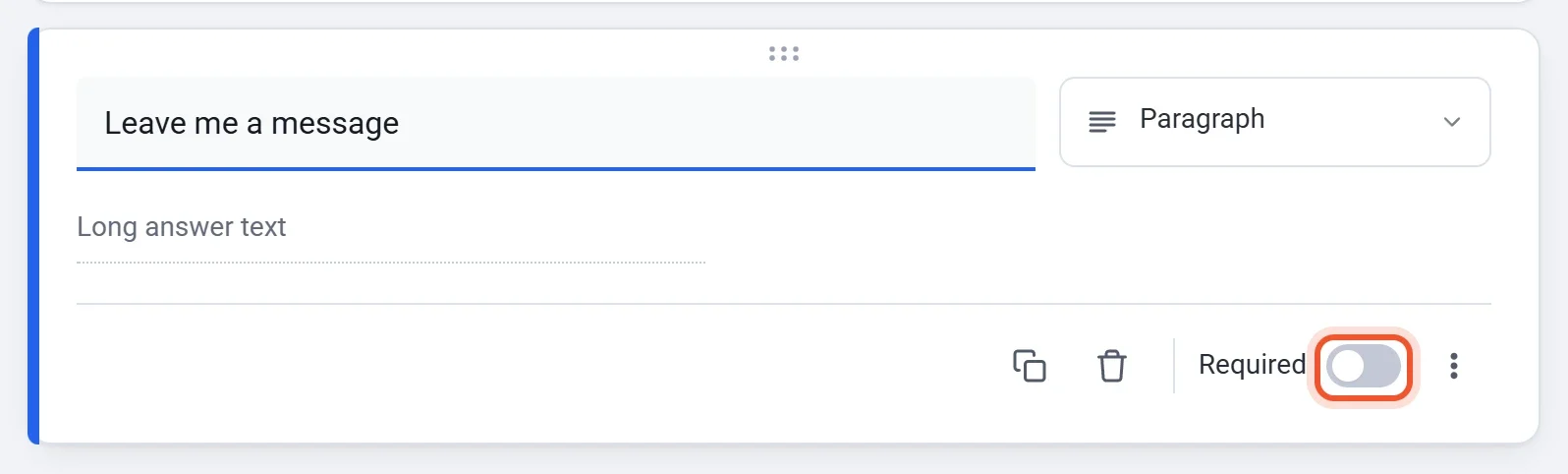
For a line of help under the question, click More options (the three dots) and choose Description. To limit how long an answer can be, choose Response validation and set Maximum characters.
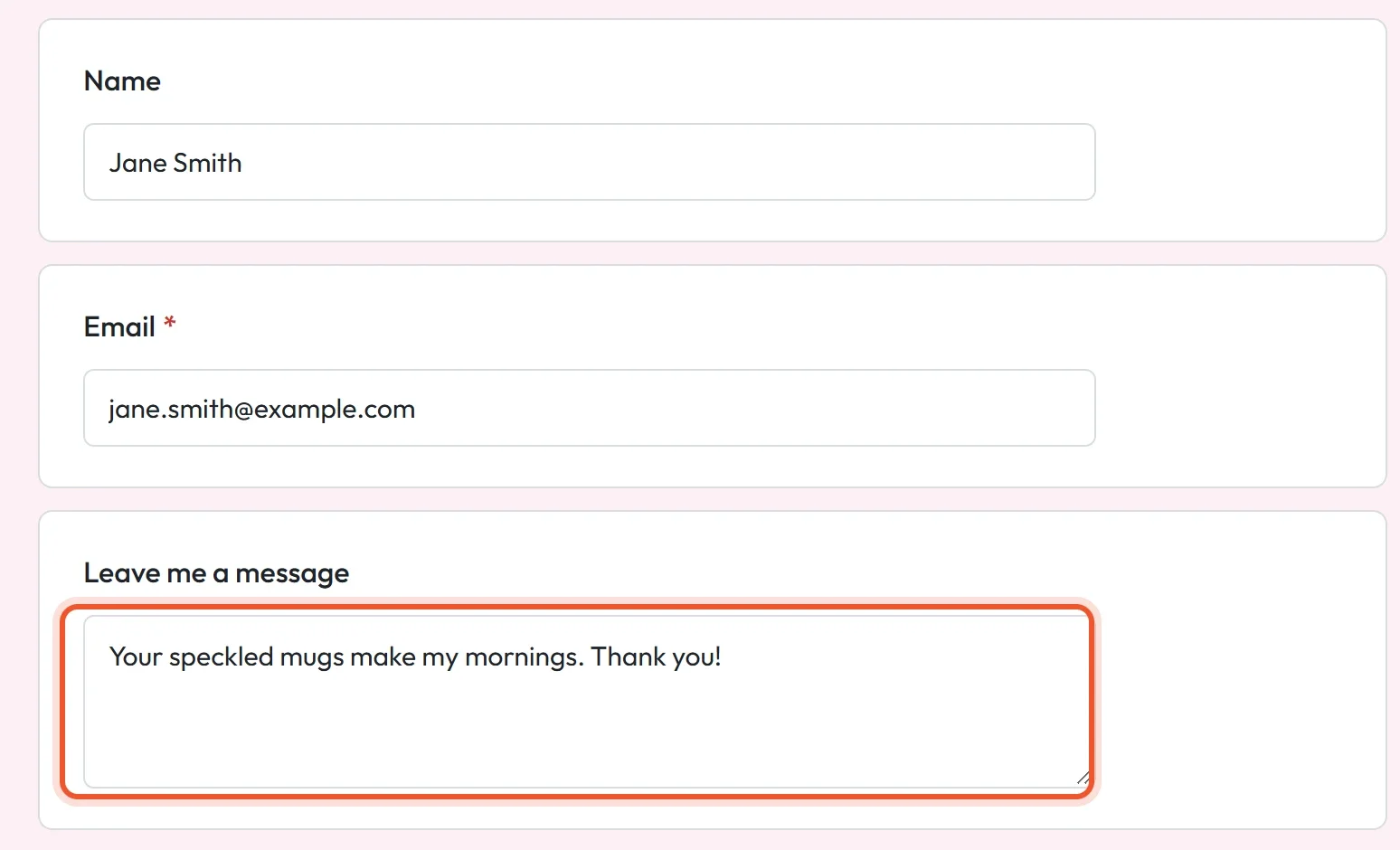
Tippers type their answer on your tip jar page, together with their name and email address.
Read the messages
A message is saved when its tip is paid. To read it, click Donations in your tip jar's dashboard. A tip jar is built like a donation form, so its tips are listed on screens named Donations and Donors. Choose a view at the top of the screen:
| View | What it shows |
|---|---|
| Table | One row per tip, with the date, what was paid, the name, the email address and the answer to each question, including the message. |
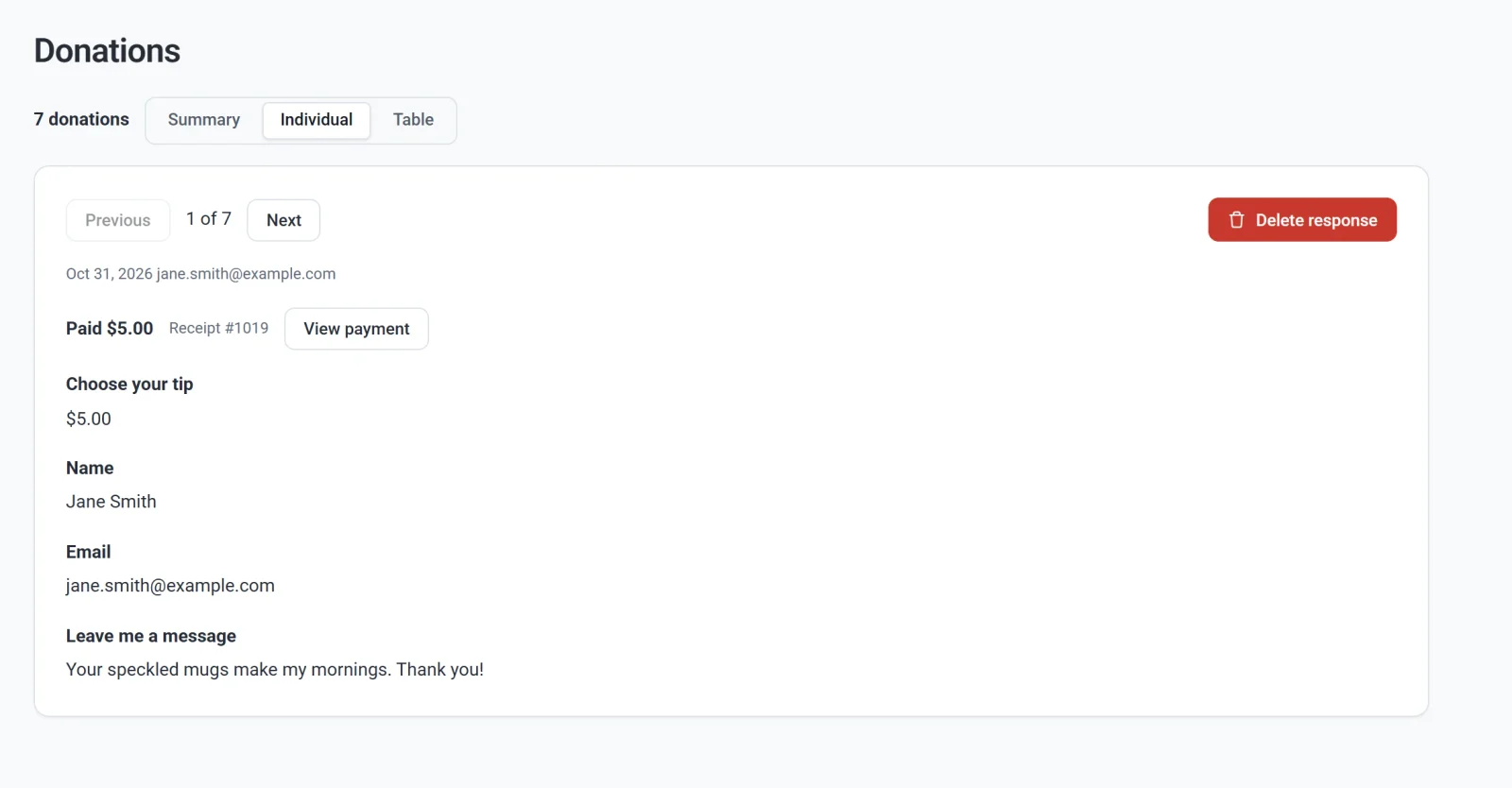
| Individual | One tip at a time. Click Previous and Next to move through them. You also see the receipt number, and View payment opens the payment. |
| Summary | Each question with all its answers together. The tip amounts show an average and a total, and typed answers list the newest 20. |
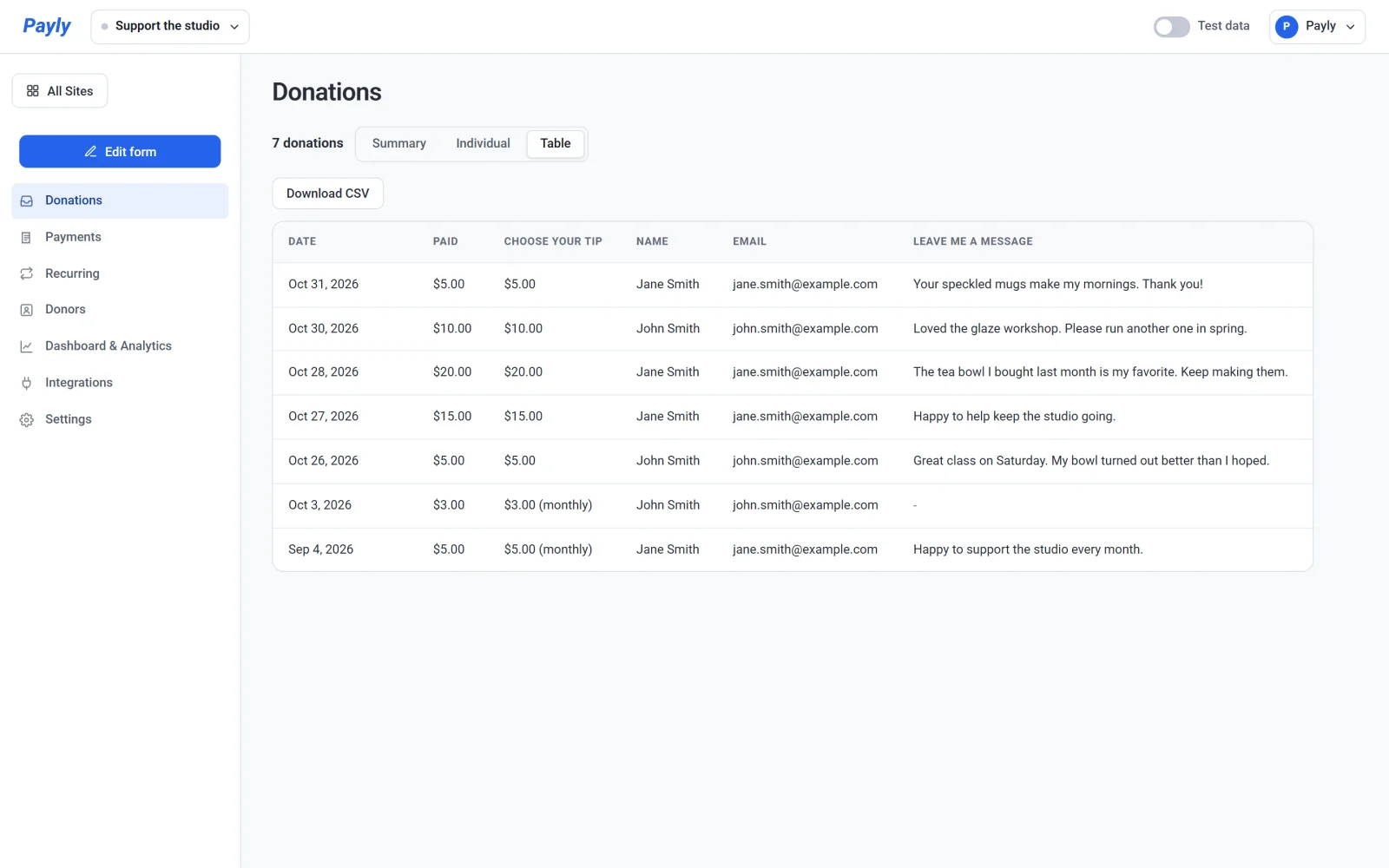
In the Table view, click Download CSV to save the table as a spreadsheet file. It has the same columns as the screen, one row per tip.
Good to know
- Each tip comes with the tipper's email address, so you can write back from your own email to say thanks.
- Messages arrive after the tip is paid, so read them before you share one or read it out loud, for example on a stream.
- In the Individual view, Delete response removes that tip's answers for good. The payment stays under Payments.
- The name is optional. Tippers who leave it empty show as a dash in the table, and their email address is still there.