
Charge on a schedule with recurring payments
Make a payment form charge every week, month or year, or on your own schedule, and stop after a set number of payments or run until cancelled.
A recurring payment form charges the same total again on a schedule you choose: monthly dues, weekly classes, a course paid in three installments. PayPal or Stripe makes each charge in your own account. Payly never holds the money, and adds no fee of its own.
Set the schedule
- In the form builder, click the Settings tab.
- In the Payments card, open Charge the total and choose Once, Every week, Every month, Every year or Custom.
- For Custom, set Repeat every to a number of days, weeks, months or years, such as every 2 weeks or every 3 months. There can be up to a year between payments.
- To end the schedule, turn on Stop after a number of payments and type the Number of payments, from 2 to 999. While it is off, payments go on until the subscription is cancelled.
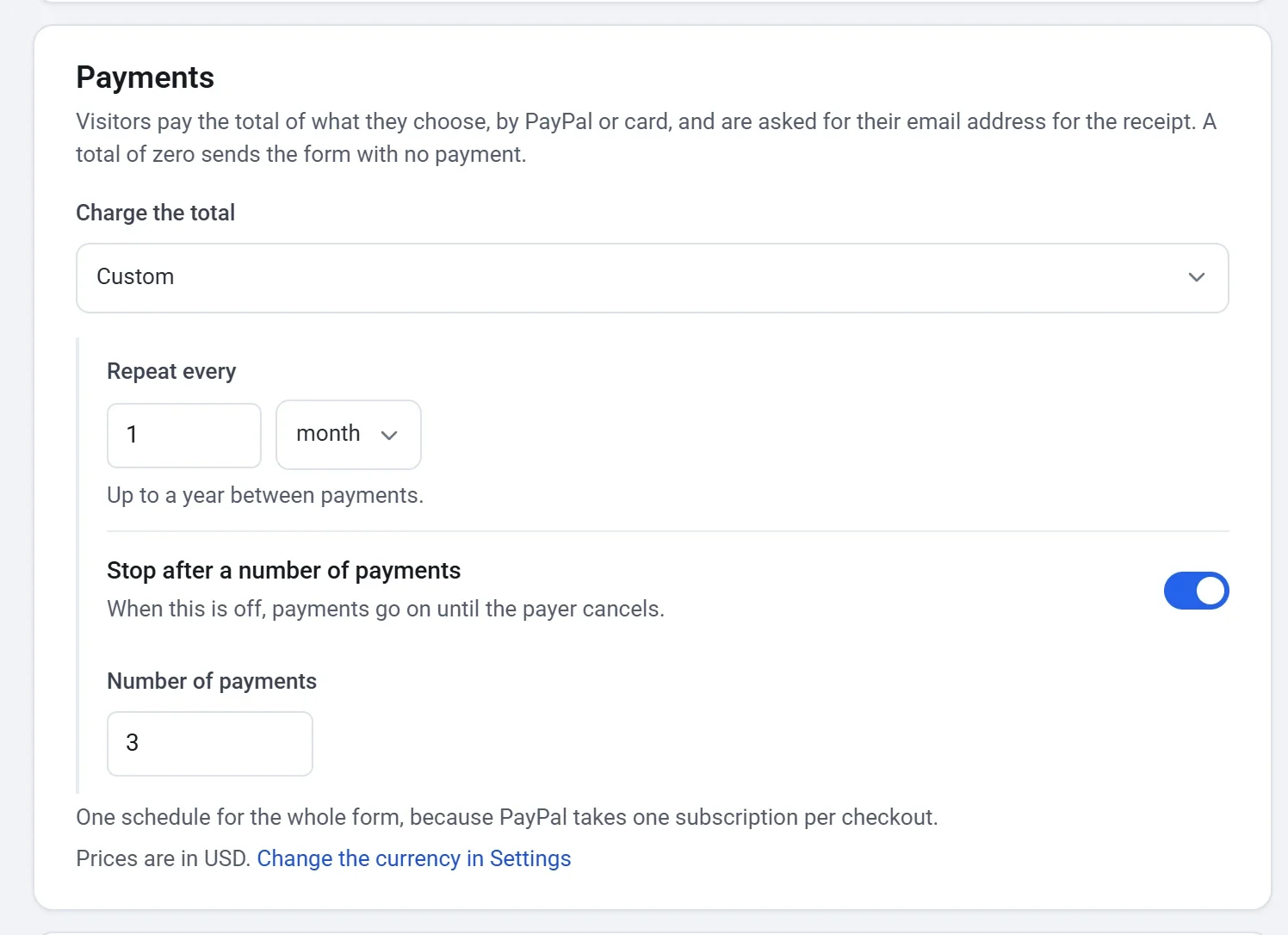
The payer is charged the whole total when they pay at the end of the form, and again each time the schedule comes round. The total is made of the prices they chose, so every priced choice and every amount on the form repeats. See Take payments on a form for how prices work.
Tip: a form has one schedule for everything on it, because PayPal takes one subscription per checkout. If some of what you sell should be paid once and the rest should repeat, make a separate form for each.
What payers see
- Next to each priced choice, they see how often it is charged, such as $100.00 / month.
- The Total shows the schedule: $100.00 / month, or $40.00 every 2 weeks for a custom one. When you set a number of payments, a line below it says how many, such as Ends after 3 payments.
- They pay with Pay with PayPal or Pay with Credit Card, as on any payment form.
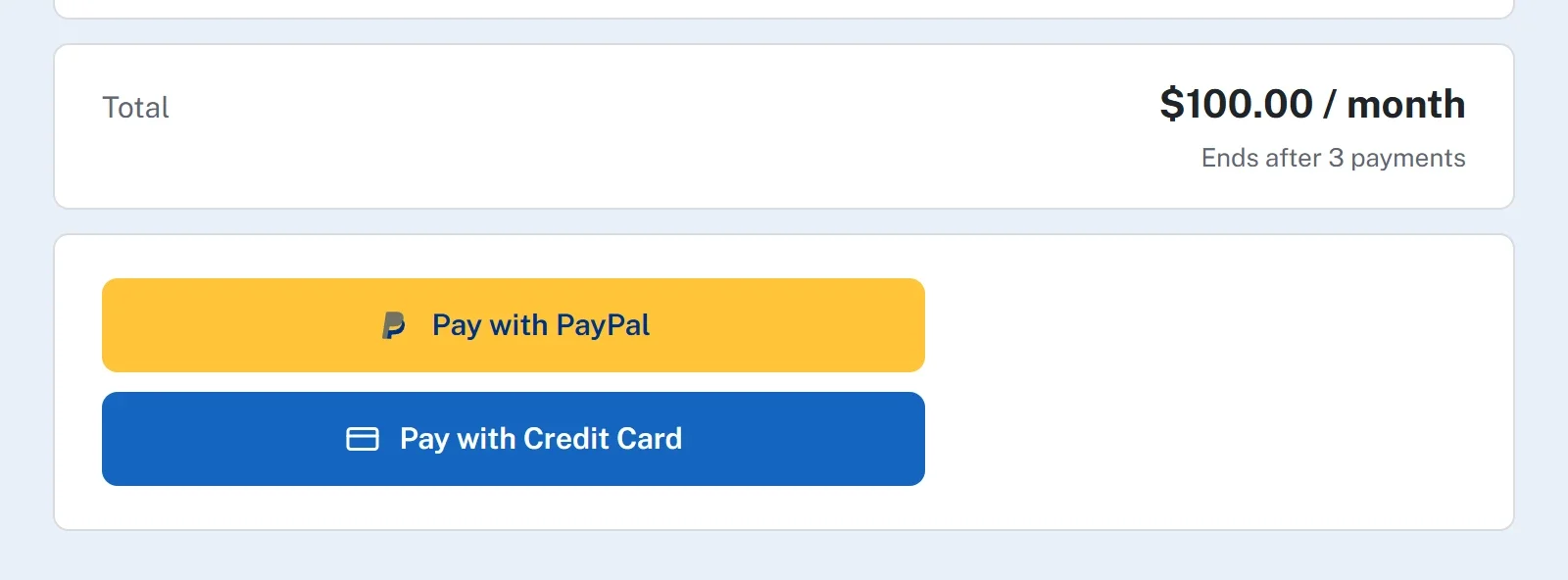
A total of zero schedules nothing. The payer sends the form with no payment.
After someone signs up
- The first payment is charged when the payer pays at the end of the form. Their answers are saved once, as a response, with that payment.
- Each later payment is charged by PayPal or Stripe on schedule. It brings no new answers.
- The payer gets a receipt by email for every payment. When a set number of payments is used up, the schedule ends by itself.
- Every payment is listed under Payments in your form's dashboard, where you can refund it. See Refund a payment.
See and manage the schedules
Once a form charges on a schedule, Recurring appears in its dashboard menu. A form that is paid once does not show it. Each payer's schedule is one row, with the customer, the amount, how often it is billed, its status and the date of the next payment.
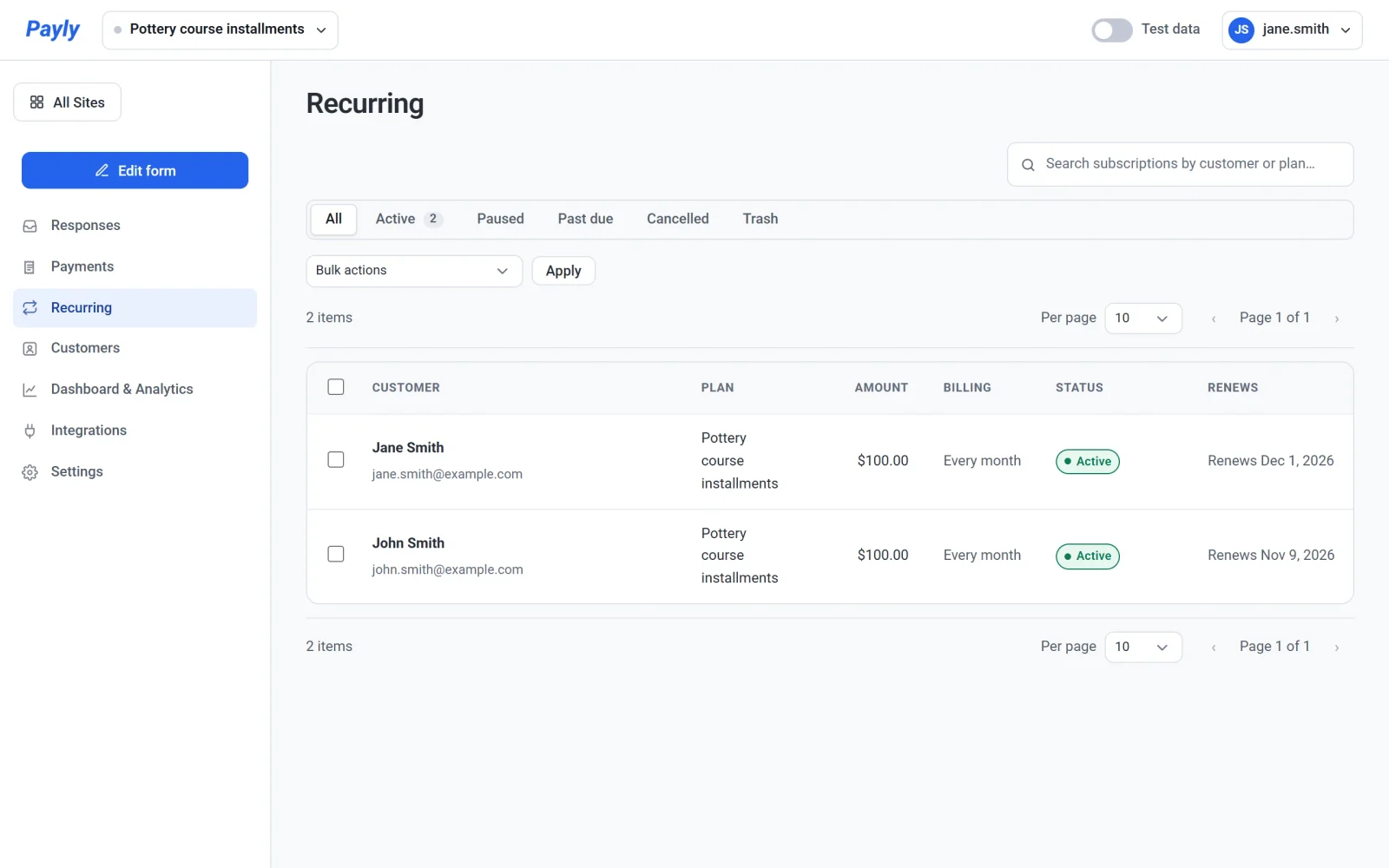
Click a row to see its payment history, or to pause or cancel it. A cancelled schedule stops renewing at the end of the period the payer already paid for, and the payer is not refunded. The screen works like Subscriptions in a store: see View and manage subscriptions. If a payment fails, see Renewals and failed payments.
Try it before going live
Turn on test mode in your form's dashboard under Settings > Payments, and make a payment with your sandbox PayPal or Stripe account. See Take test payments with test mode.