
Labels and the menu key
Mark dishes Gluten-free, Halal, Spicy and more with short letters like GF, explained by a key at the top of your menu.
Labels tell customers what a dish is before they order: Vegan, Vegetarian, Gluten-free, Dairy-free, Nut-free, Halal, Kosher or Spicy. You can add labels of your own too, such as House special.
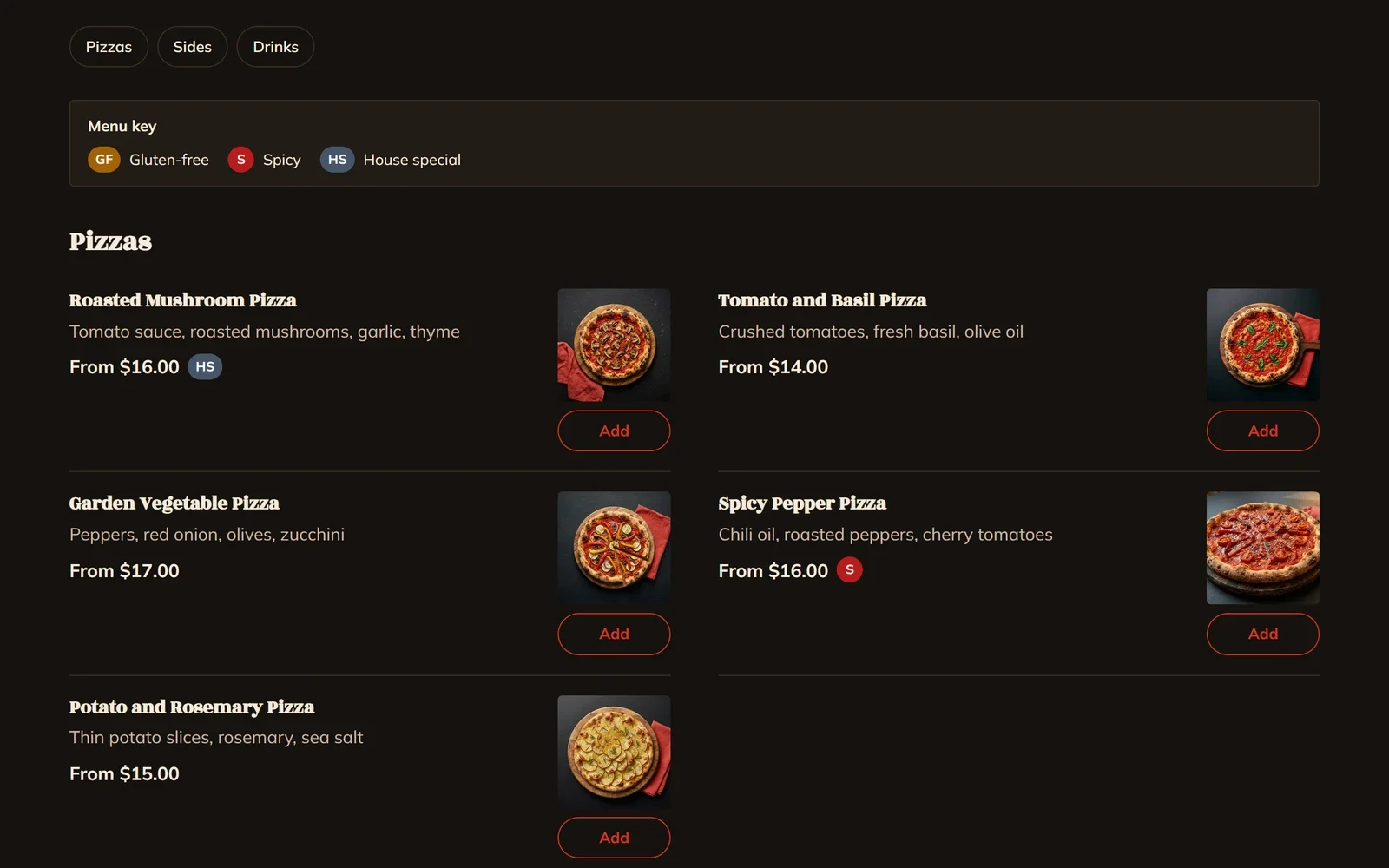
Each label shows as short letters in a colored badge beside the dish's price, such as GF for Gluten-free. A Menu key at the top of your menu says what each badge means, and lists only the labels your dishes use. When a customer opens a dish, its labels are written out in full.
Add labels to a dish
- In your site dashboard, click Menu, then click a dish's name.
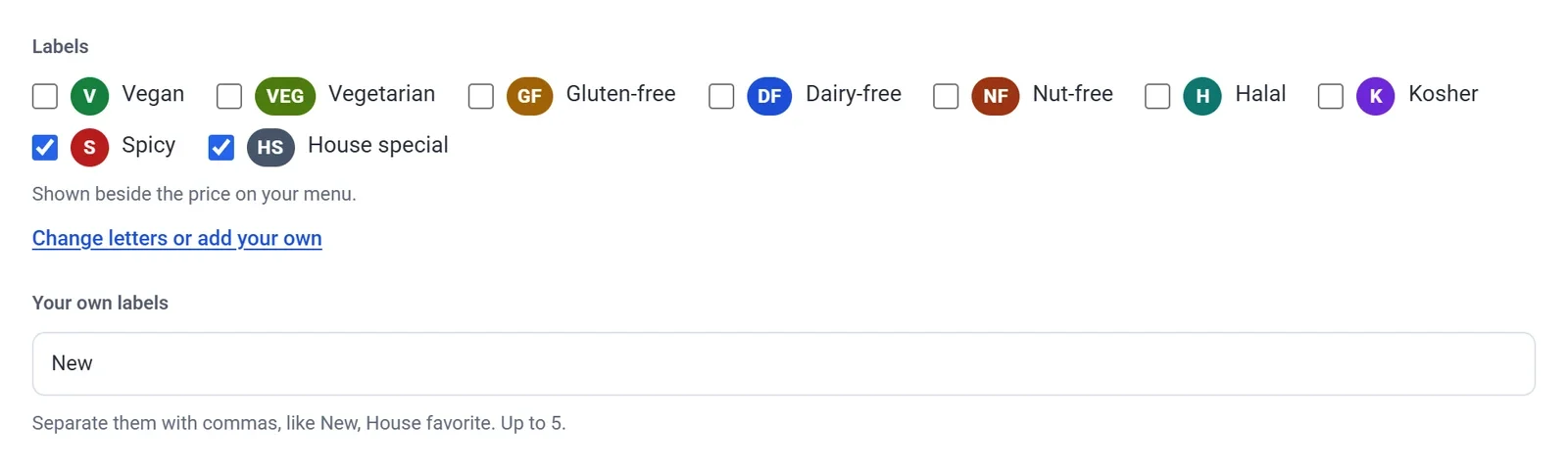
- Under Labels, tick each label that fits the dish.
- Click Save.
Your menu shows the change after you save. You do not need to publish your site again.
Choose letters or full words
- In your site dashboard, click Labels, under Menu.
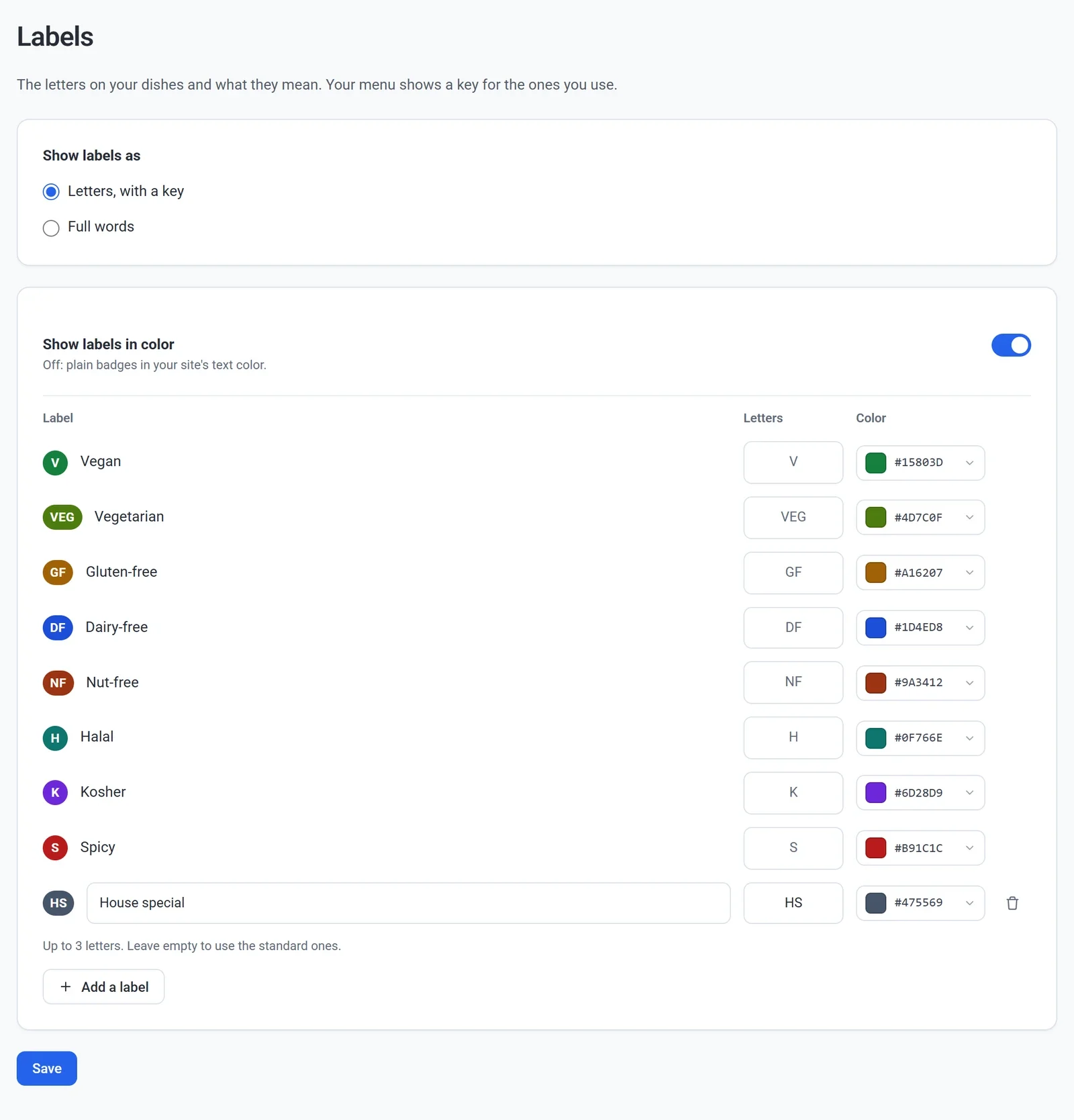
- Under Show labels as, choose Letters, with a key or Full words. With full words, each label's whole name shows beside the price, and there is no key.
- Click Save.
Change a label's letters
Every label starts with the standard letters for your website's language. To use your own:
- On the Labels screen, type up to 3 letters in the label's Letters box, such as HOT for Spicy. Leave the box empty to use the standard letters.
- Click Save.
No two labels can have the same letters, so your key always says which label a badge means.
Add your own labels
- On the Labels screen, click Add a label.
- Enter the label's name, such as House special, and its letters, such as HS.
- Click Save.
Your label is now in every dish's window, under Labels, ready to tick. You can add up to 10 labels of your own. To remove one, click its trash can, then click Save.
Change the colors
Each label has its own color, with its letters in white or black, whichever is easier to read.
- On the Labels screen, click the color box beside a label.
- Pick one of your site's colors or any color in the square, or type a color code such as #15803D.
- Click Save.
To show labels without colors, turn off Show labels in color and click Save. Your labels then use your website's text color. Colors work with letters and with full words.
Words for one dish only
To add a few words to one dish, such as New, type them in the dish's Your own labels box, with a comma between each one. They show after the dish's labels, without a color, and are not in the key.