
Sell online from your website
Turn on Sell online in Settings > Features to add products, a cart and a checkout to your business website. Turn it off again and nothing is deleted.
Your website can sell too. Turn on Sell online, and it gets products, a cart and a checkout, with payments through your own PayPal or Stripe account. A salon can sell gift cards this way, or a landscaper packets of seeds. It is off on a new website.
Turn on Sell online
- In your site dashboard, click Settings, then the Features tab.
- Turn on Sell online. It saves at once.
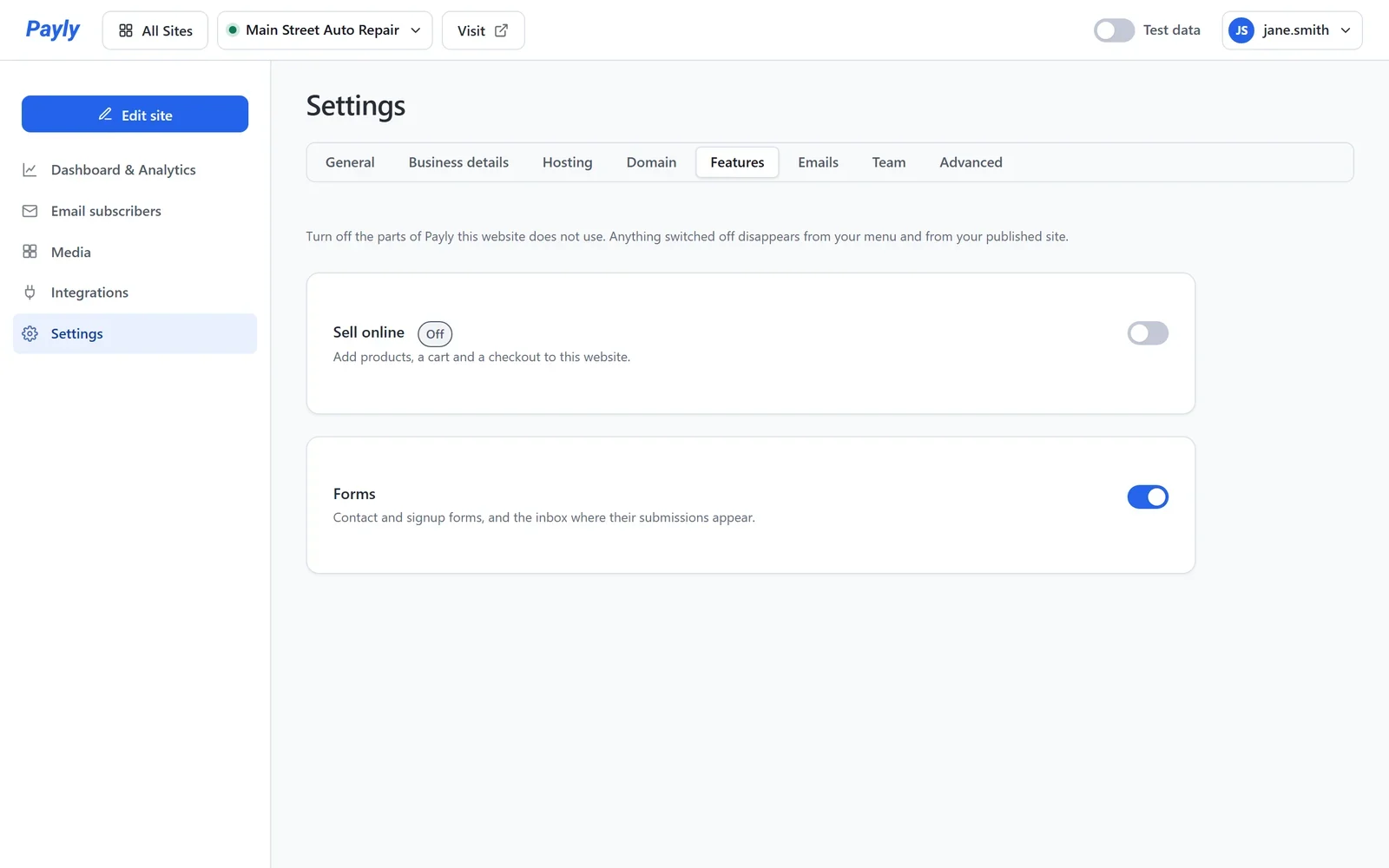
Then:
- Your dashboard menu gets Orders, Products and the other screens a store has, and Settings gets Payments and Shipping & Tax.
- Your website gets a Shop page and a cart and checkout. The cart button in your header opens the cart.
- Getting set up gets one more step: Connect a payment processor.
Publish your website so the shop shows on your live site. To start selling, add a product and connect PayPal or Stripe. See Add a product and Connect Stripe.
Turn it off again
- In Settings > Features, turn off Sell online.
- Payly asks first. Click Turn it off.
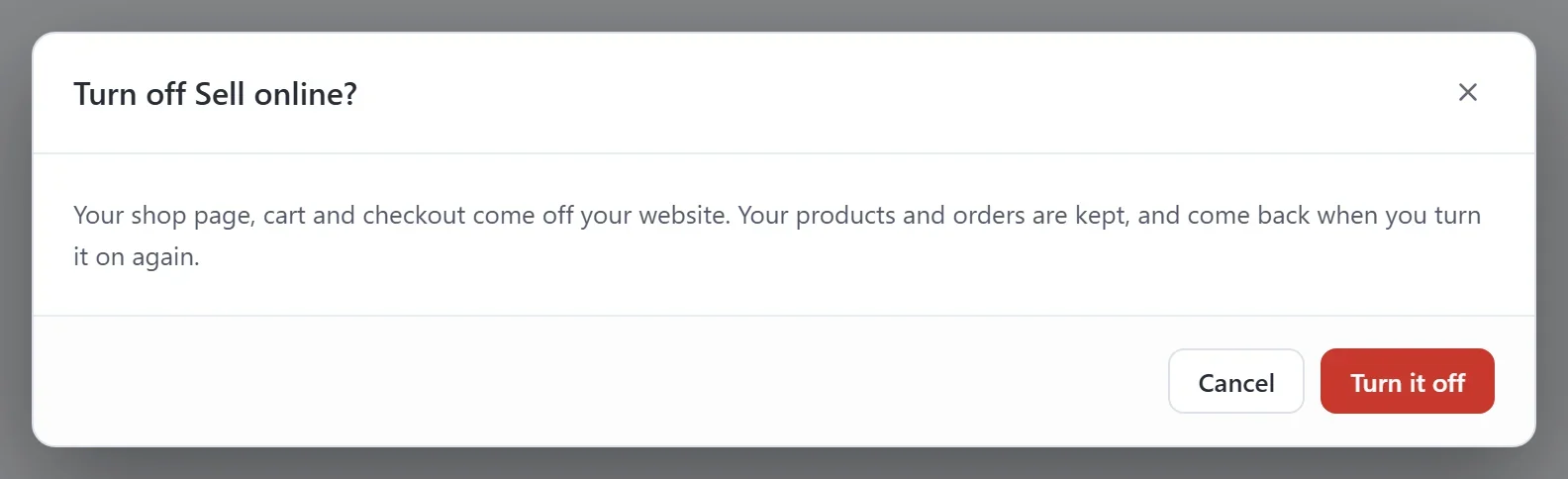
Your shop page, cart and checkout come off your website, and the store's screens leave your menu. Nothing is deleted: your products and orders are kept, and they come back when you turn it on again. Publish your website so the change shows on your live site.