
Add an icon
Add a free icon or a social media logo to any page, find it by searching or browsing, and set its size, color and link.
The Icon block shows one small picture on a page, such as a shopping cart, a heart or a delivery truck. You can pick from about 2,000 free icons and 30 social media logos. They are line drawings, so they stay sharp at any size and take the color you choose.
Add an icon
- In the editor, open Blocks on the left.
- Drag Icon, under Basics, onto the page.
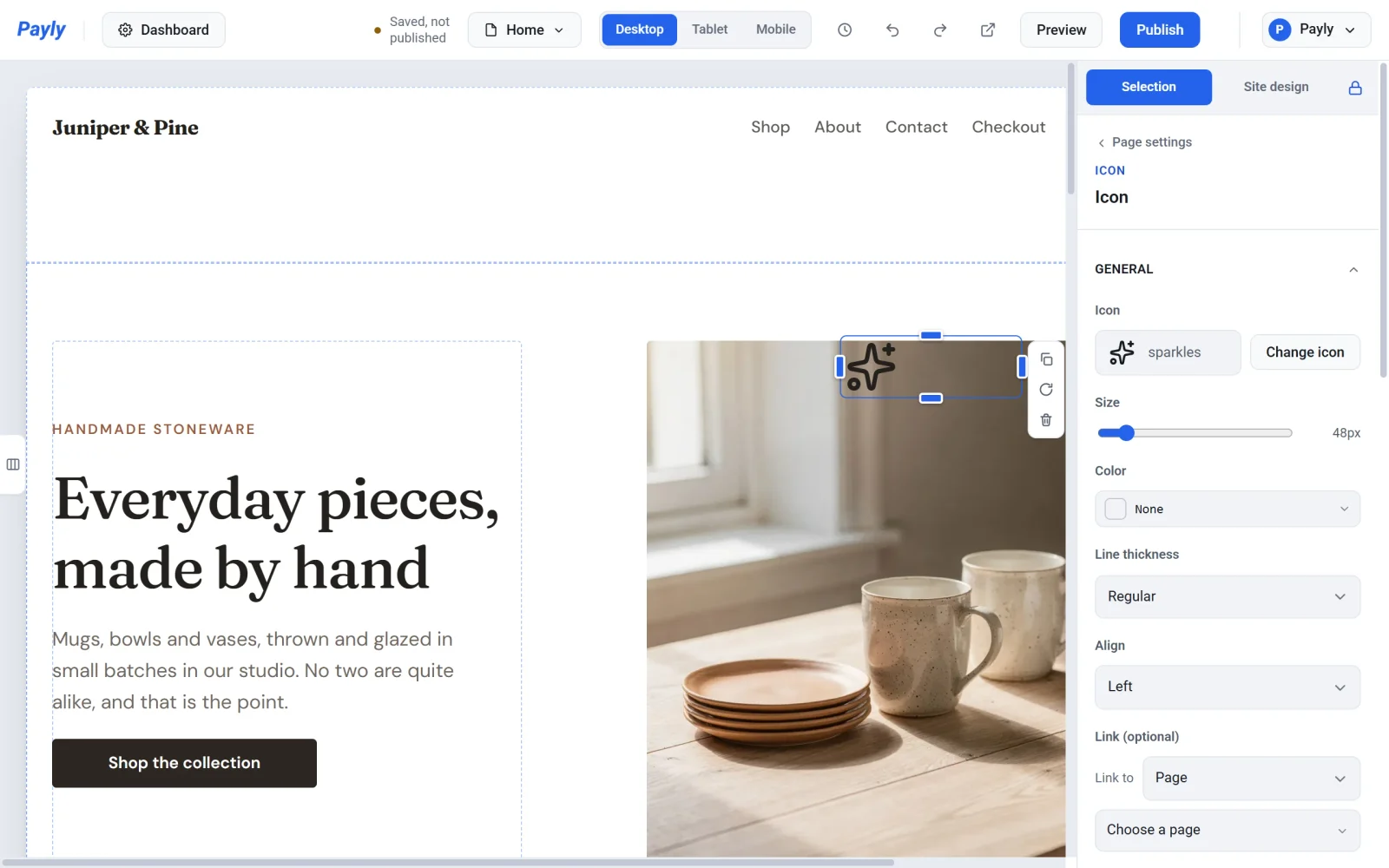
- In its settings on the right, click Change icon.
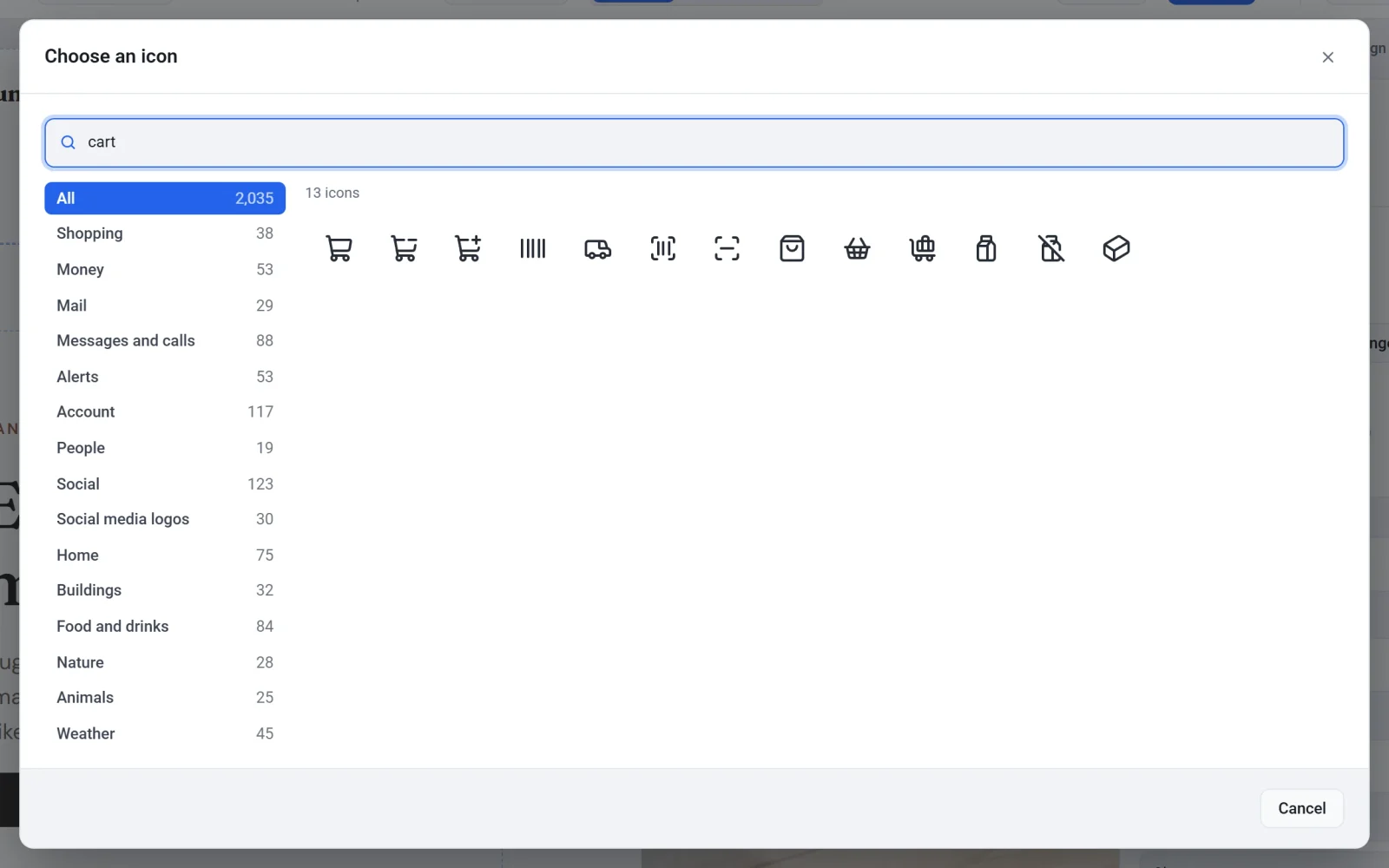
- Search for an icon, or pick a category on the left, then click the icon you want.
- Click Publish.
Find an icon
- Search icons: type a word, such as cart, gift or truck. The search also knows similar words, so cart finds bags and baskets too. It works in your dashboard's language.
- Categories: Shopping, Money, Food and drinks, Travel and more. Social media logos has Facebook, Instagram, TikTok, YouTube, WhatsApp and 25 more.
- Recent: the icons you picked last in this browser.
With a keyboard, press the down arrow to go from the search box to the icons, move between them with the arrow keys, and press Enter to pick one.
Change its size, color and look
| Setting | What it does |
|---|---|
| Size | From 12 to 320 pixels. An icon is never wider than its block. |
| Color | Any color. With None, the icon takes the color of your text. |
| Line thickness | Thin, Regular or Bold. |
| Align | Left, center or right inside its block. |
Size and Align can be different on tablets and phones: switch to Tablet or Mobile at the top of the editor and change them there. See Make your site look right on phones and tablets. To move an icon, drag it like any block: see Add, move and resize blocks.
Link an icon
Under Link (optional), choose a page, a category, a product or a custom link. Clicking the icon then goes there, for example a social media logo that opens your Instagram page.
Fill in Label for screen readers to say what the icon means, such as Free shipping or Follow us on Instagram. People who use a screen reader hear it. Leave it empty if the icon is only for looks.
Use the social media logos only to link to your own accounts on those sites. The logos belong to those companies.