
Change your website's design
Switch your business website to another of the nine designs. Your business details, opening hours, logo and settings stay as they are.
You can switch your website to another of the nine website designs at any time, such as from Auto repair to Remodeling. The new design brings its own pages, colors and fonts.
What changes and what stays
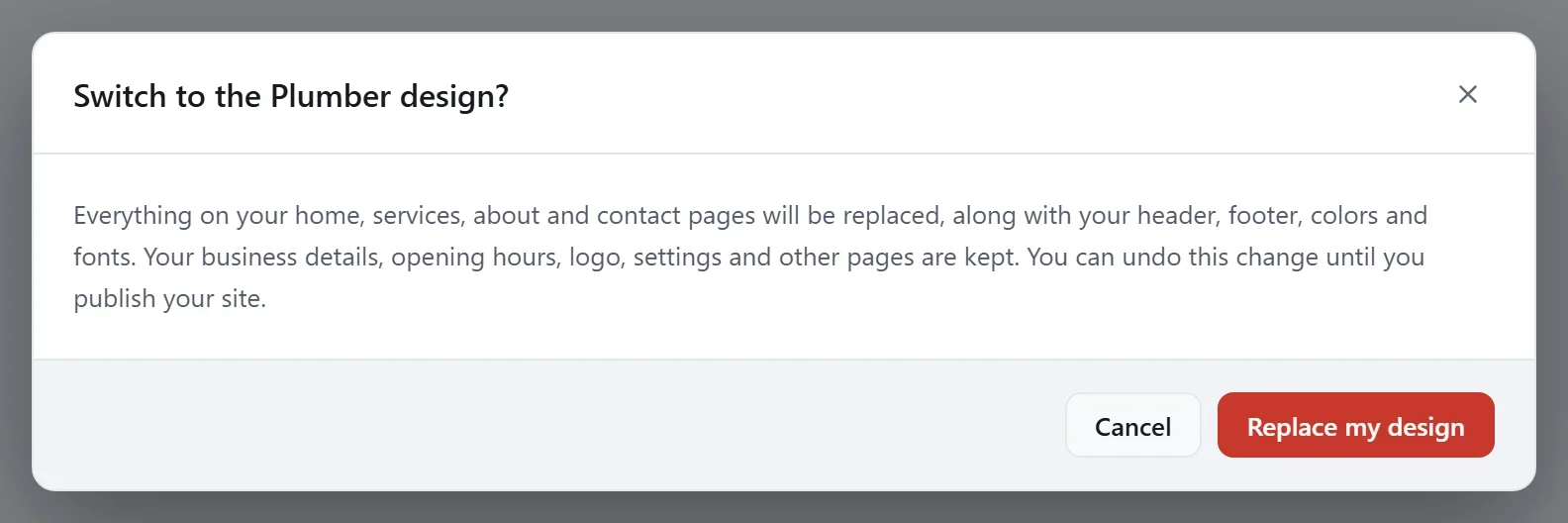
- Replaced: everything on your Home, Services, About and Contact pages, your header and footer, and your colors and fonts.
- Kept: your business details and opening hours, your logo, your settings and any other pages you added.
If you wrote your own words on those four pages, copy them somewhere safe first.
Switch your design
- In your site dashboard, click Edit site.
- Click the Site design tab on the right, then click Change site design? at the bottom of it.
- In the Change design window, click the design you want. The one you have now is marked Current.
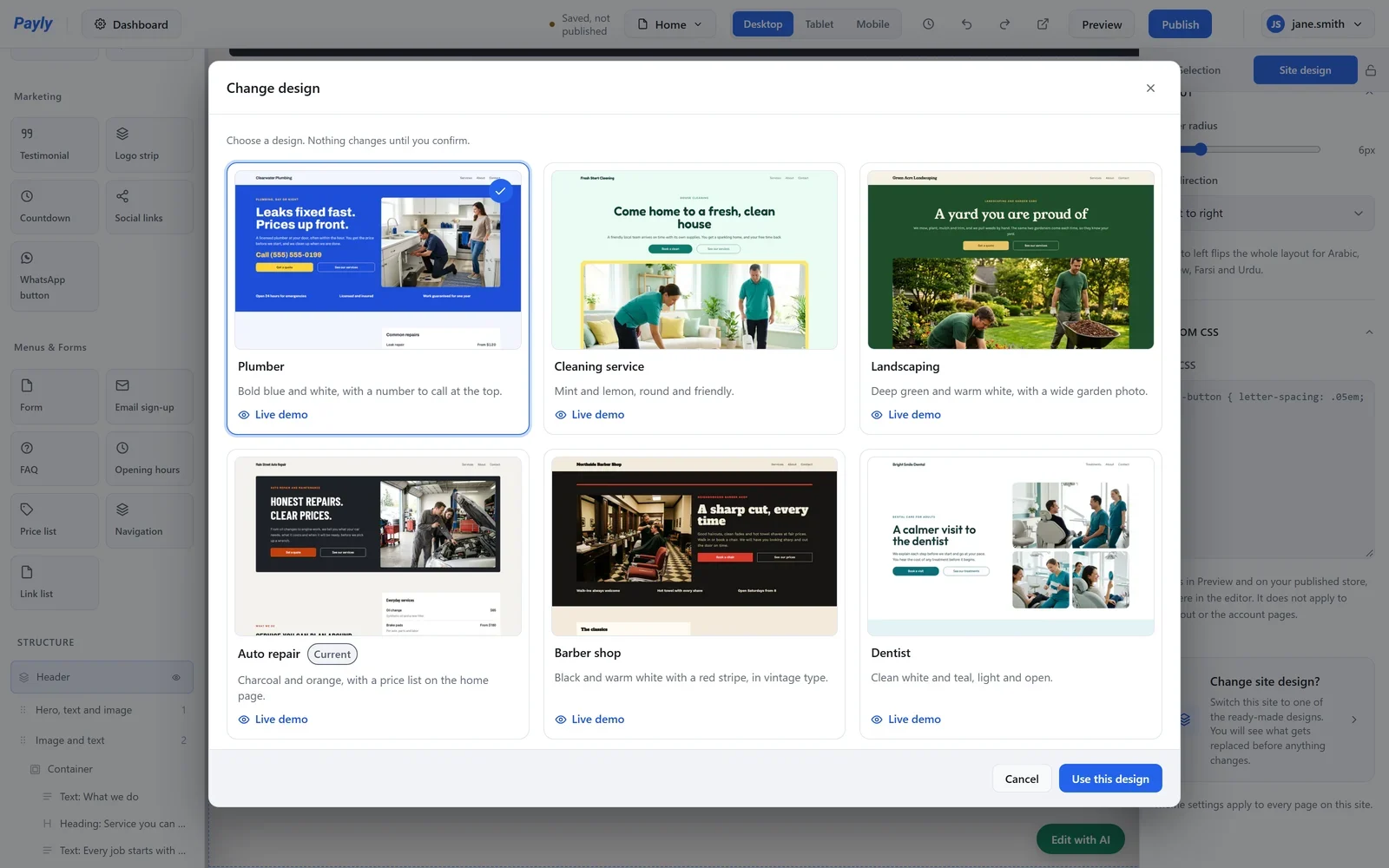
- Click Use this design.
- Read the message, then click Replace my design. Click Cancel to stop: nothing changes until you replace it.
The editor then shows your Home page in the new design, with its sample words and photos. Put in your own, then publish. Your live website does not change until you publish.
Go back
Until you publish, you can undo the switch: click Undo in the top bar, or press Ctrl + Z. This works while the editor stays open. To go back later, restore an earlier version. See Undo changes and restore an earlier version.