Add an announcement bar
Show a short message across the top of your store, like a sale or free shipping, with an optional link, email box, countdown and close button.
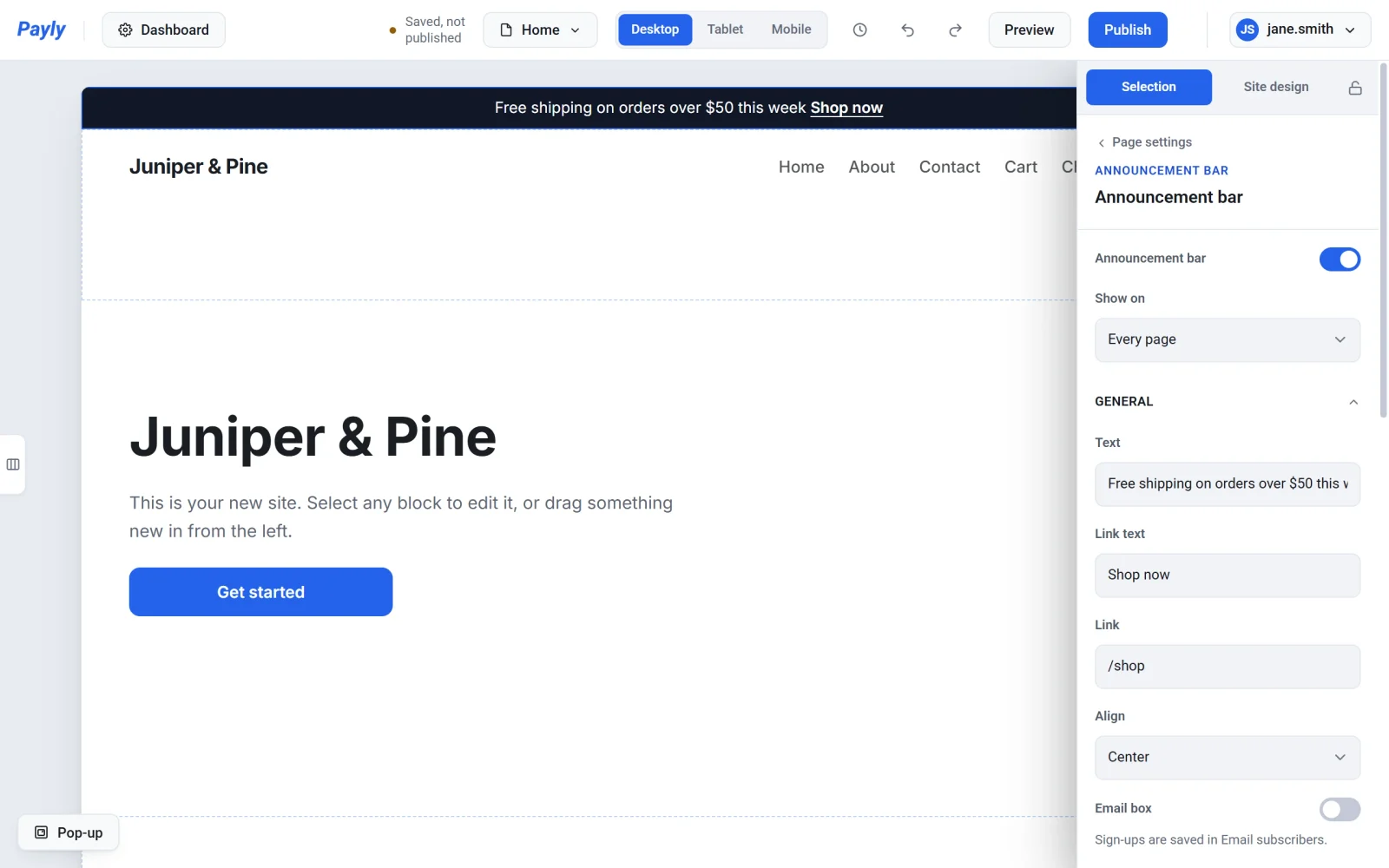
The announcement bar is a strip across the very top of your store, above the header. Use it for a short message, like a sale or free shipping. Your store has one bar.
Add your bar
- In the editor, click an empty part of the page, so the page settings show on the right.
- Click Add an announcement bar at the top. The bar appears across the top of the page, with its settings on the right.
- Type its Text. To add a link, fill in Link text and Link.
- Click Publish.
To change it later, click the bar on the page, or Edit announcement bar at the top of the page settings. To turn it off for a while, switch off Announcement bar at the top of its settings. Your settings are kept.
Choose the pages it shows on
Under Show on, pick Every page, or Only these pages and tick the ones you want. The editor shows the bar only on the pages you picked, the same as your store does.
More it can do
- Email box: collect sign-ups right in the bar. They are listed in Email subscribers, under Site in your site dashboard.
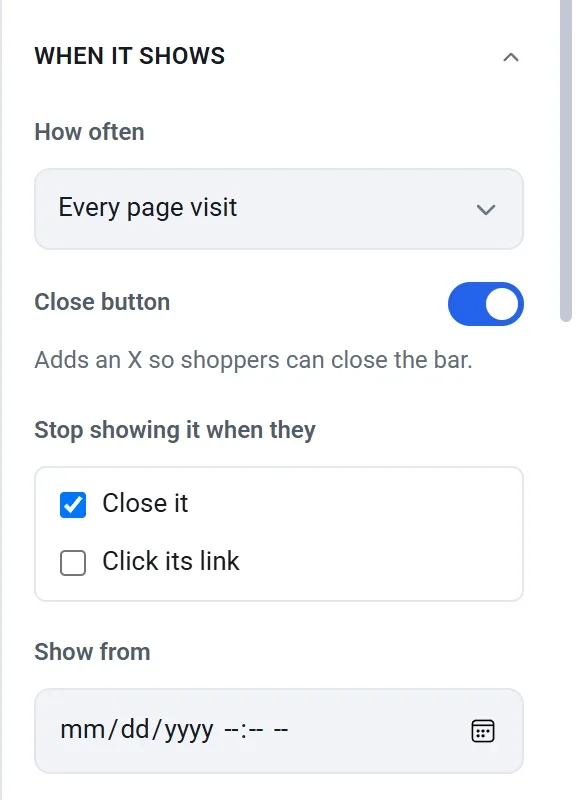
- How often: every page visit, once a visit, once a day, once a week or only once.
- Close button: adds an X so shoppers can close the bar.
- Stop showing it when they: tick Sign up, Close it or Click its link. Each one shows once the bar has an email box, an X or a link. After that, the bar no longer shows on that shopper's browser.
- Show from and Hide after: show the bar only between two dates. Turn on Countdown to show the time left until it hides.
- Its colors and font size, under Appearance.