
Show your prices with a price list
List your services with a short line and a price each, such as $35 or From $120, with the Price list block. Write the price in your own words.
The Price list block shows what you offer and what it costs: one line for each service, with its name, a short line about it and its price. It is for showing prices, so it has no buy button.
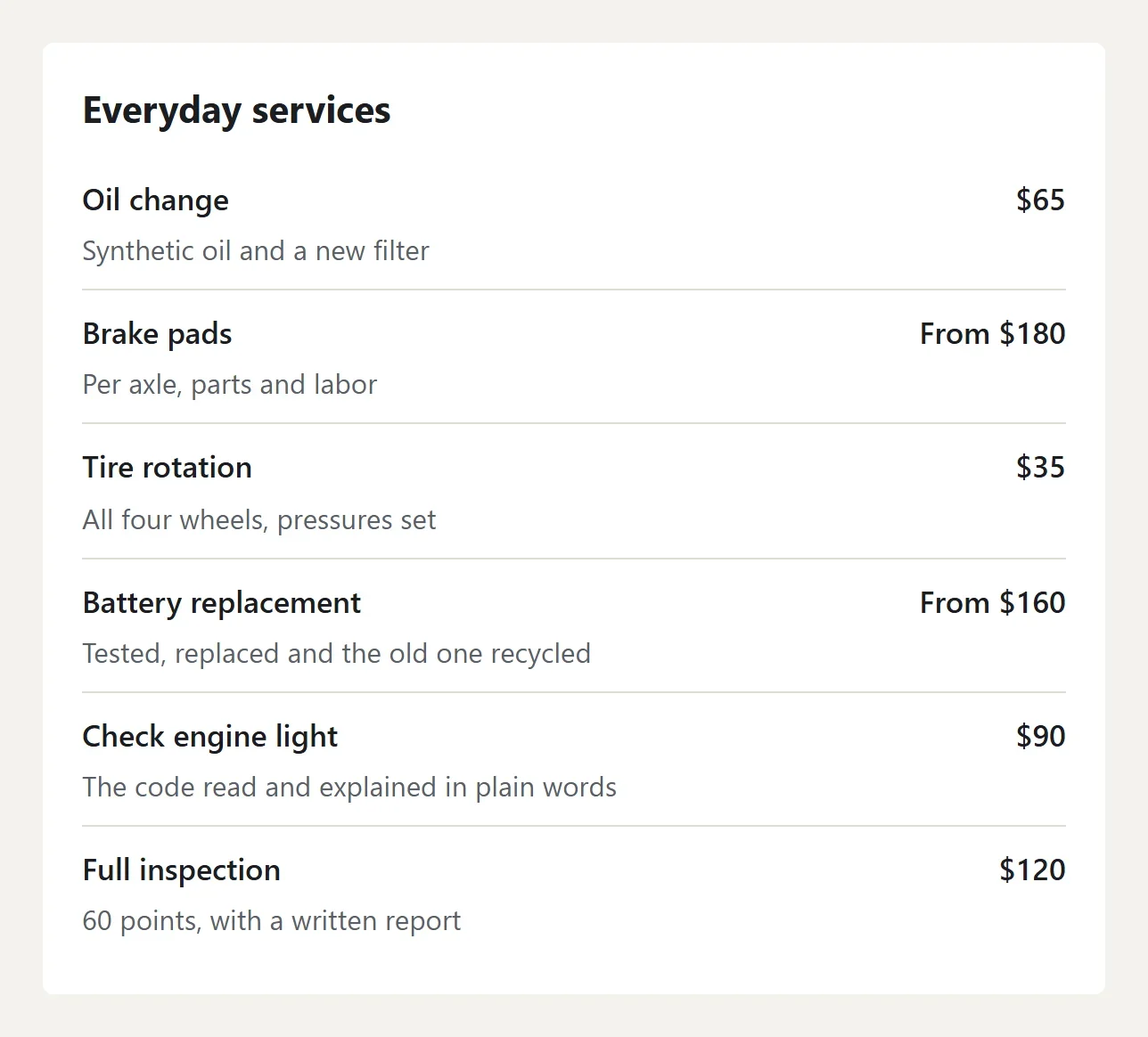
Add the block
- In your site dashboard, click Edit site, then open the page you want. Your design's Home and Services pages have one already.
- Open Blocks on the left. In the Menus & Forms group, drag Price list onto the page.
- Click the block to open its settings on the right.
Write your prices
- Enter a Title, such as Prices or Everyday services.
- Under Lines, each line has three boxes: the name, a short line about it, and the price.
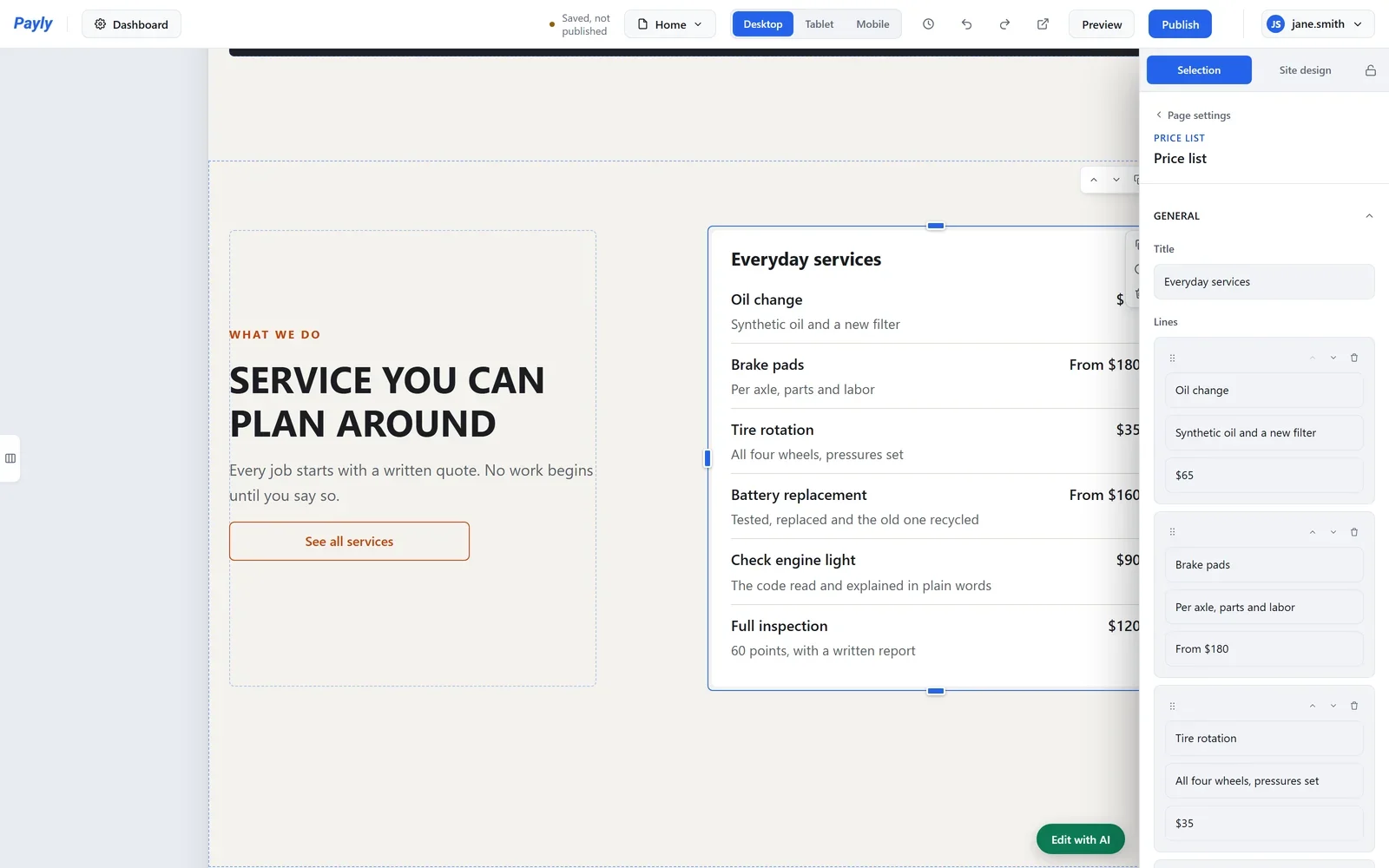
- Write each price the way you say it: $35, From $120 or Free. It is shown just as you type it.
- Click Add a line for another service. Use the arrows on a line to move it up or down, or its trash can to remove it.
- Click Publish when you are ready. Your changes show on your website after you publish.
Tip: Keep the short line to a few words, such as what is included or how long it takes. Longer details fit better in a Text block or an FAQ.