
Show your opening hours
Add the Opening hours block to any page. It shows your week with today marked, and whether you are open now, from your business details.
The Opening hours block shows your week on a page, with today in bold and a line that says Open now or Closed now. It is worked out on your business's own clock, so a visitor in another time zone still sees the right answer.
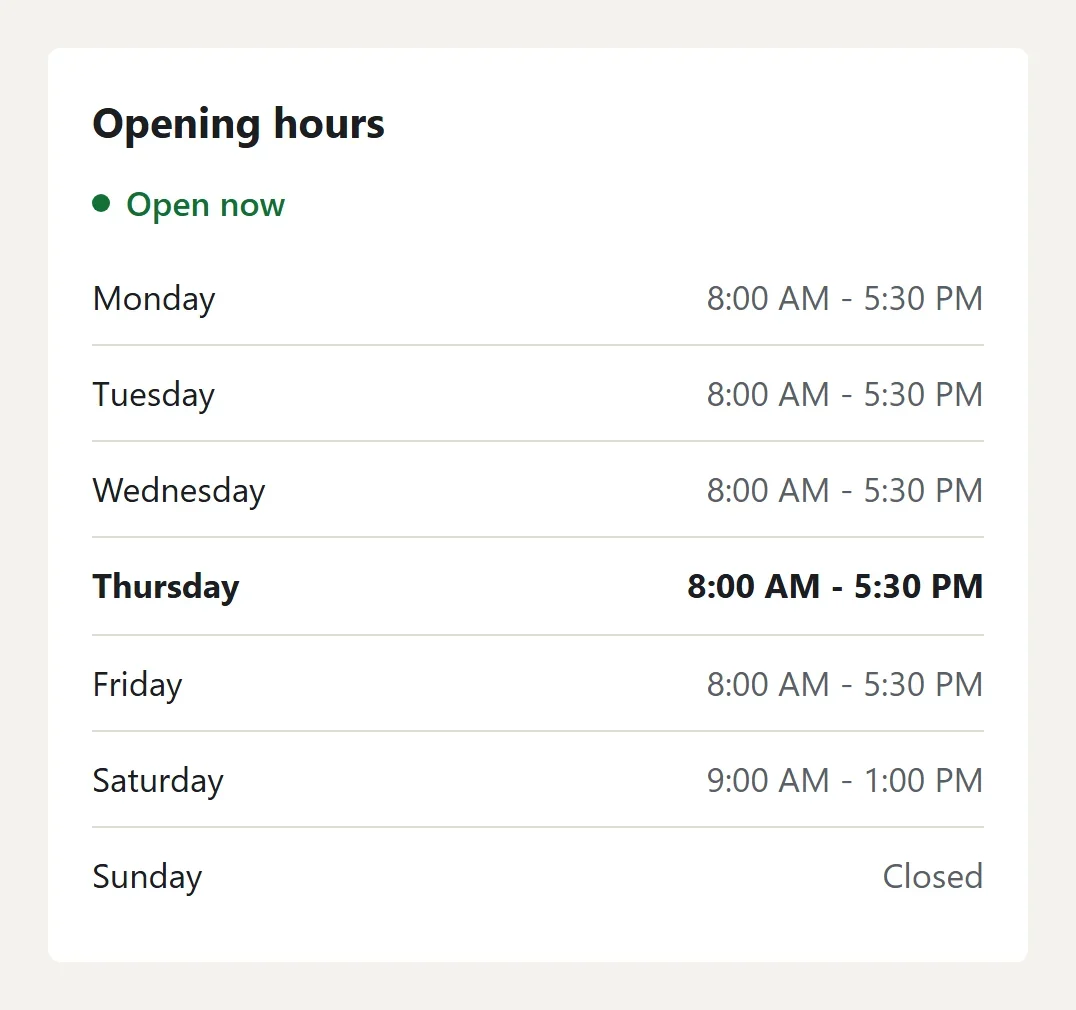
The hours come from Settings > Business details, so every Opening hours block on your website always shows the same hours. You change them there, not in the block. See Add your business details and opening hours.
Add the block
- In your site dashboard, click Edit site, then open the page you want. Your design's Home and Contact pages have one already.
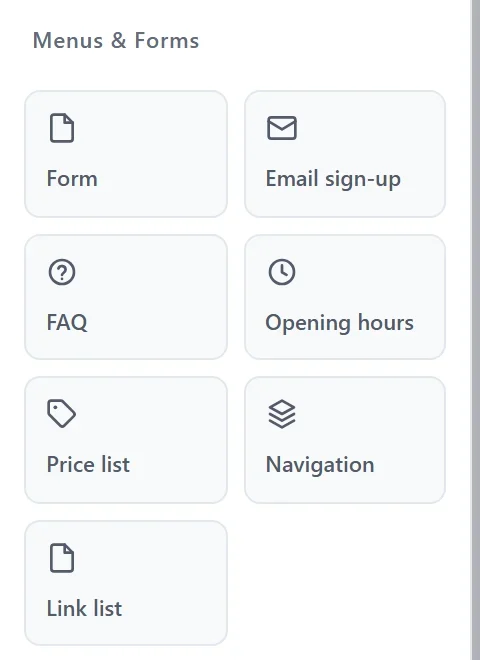
- Open Blocks on the left. In the Menus & Forms group, drag Opening hours onto the page.
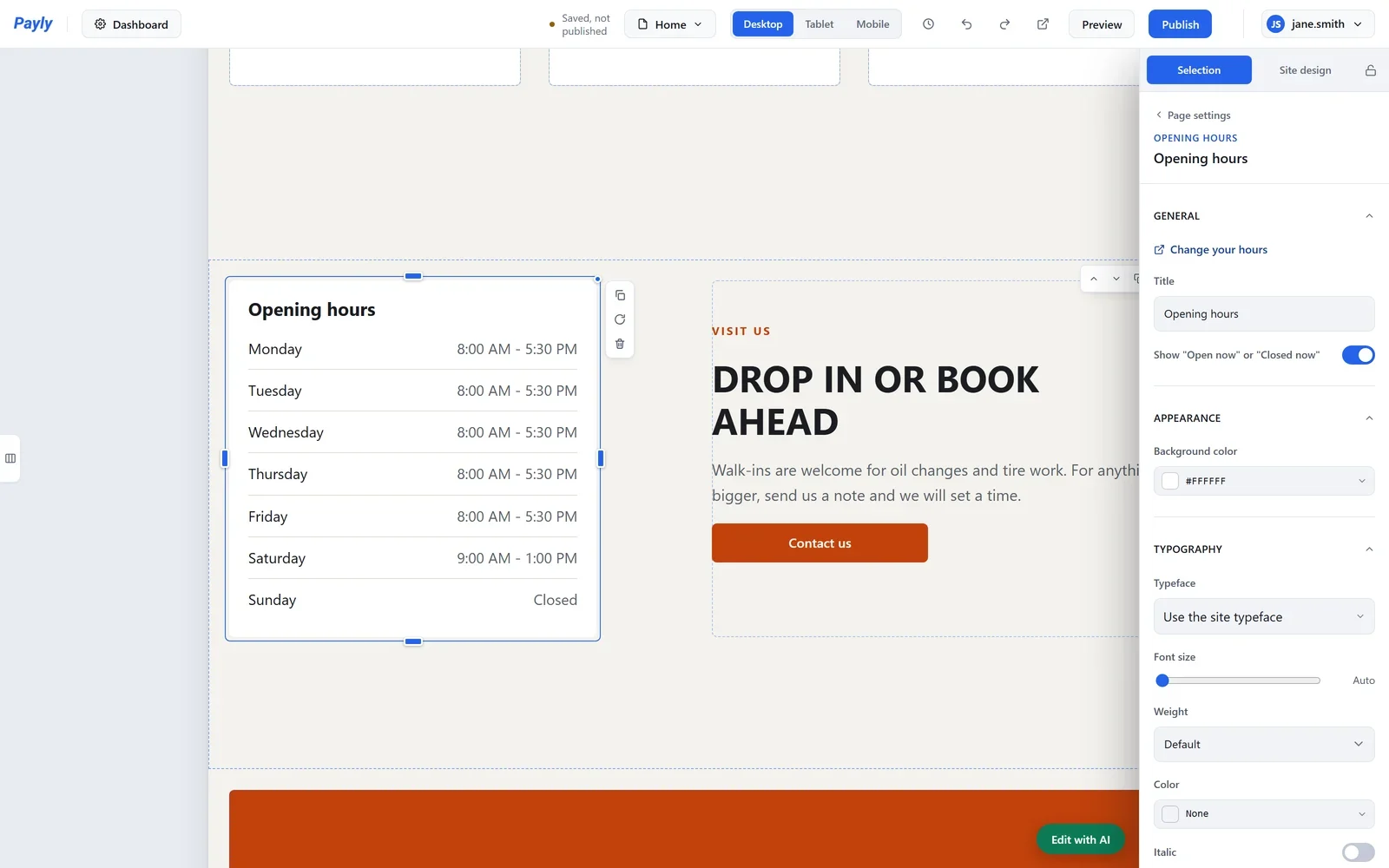
- Click the block to open its settings on the right.
Its settings
- Title: the heading above the hours, such as Opening hours or Visit us.
- Show "Open now" or "Closed now": turn it off to show the hours alone.
- Change your hours: opens Business details in your dashboard.
- Under Appearance and Typography: the block's background color, typeface and text.
Click Publish when you are ready. On your published website, the block marks today and changes between Open now and Closed now by itself, checking every minute. That needs no publish.
When you change your hours in Business details, publish your website again so every block shows the new hours.