
Take payments for bookings
Charge for a service when clients book, with PayPal or a card through Stripe, add paid extras, and refund a booking when you need to.
Any service can have a price. Clients pay when they book, with PayPal or a card through Stripe, and the money goes straight to your own account. Payly takes no fees. PayPal and Stripe charge their standard processing fees.
Before you start
Connect PayPal, Stripe or both in your booking page's dashboard, under Settings > Payments. With both connected, clients choose how to pay. See Connect PayPal and Connect Stripe.
Set a price
- Open your booking page in the builder and click the Services tab.
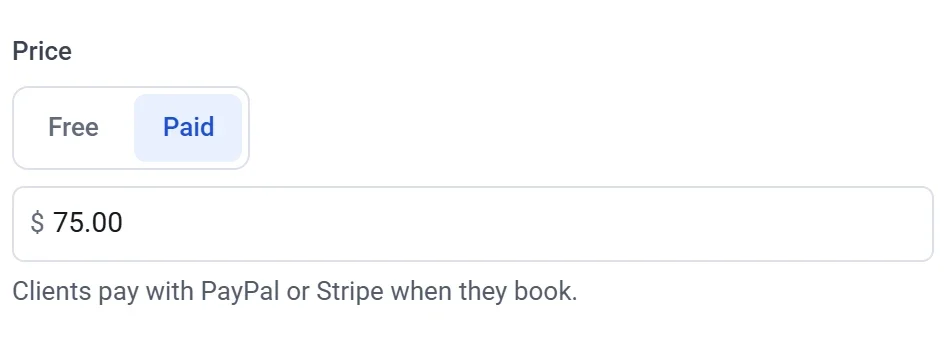
- Open a service, choose Paid under Price, and enter the price. Prices are in your site's currency, shown on the Settings tab under Payments.
Paid extras
To sell something with a booking, such as a bag of clay to take home, add a question on the Questions tab. Make it a multiple choice, checkbox or dropdown question, and put a price on each answer. The total adds up as clients choose.
What clients see
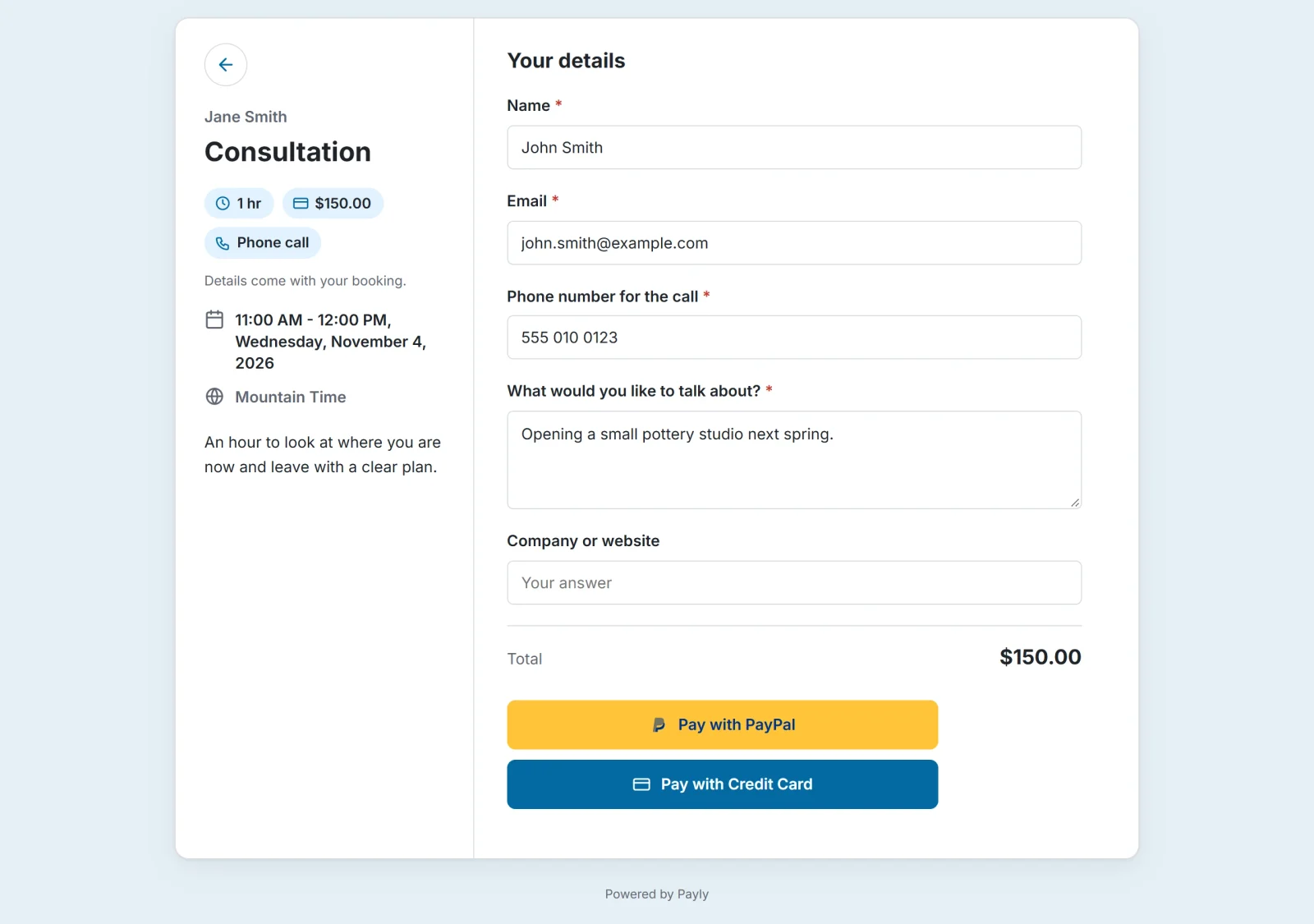
Each service shows its price. After picking a time and answering your questions, clients see the total and pay with PayPal or a card. The booking is made once the payment goes through, and the client gets their booking details and a receipt by email.
No double bookings
While a client pays, their time is held for 30 minutes so nobody else can take it. If they do not finish paying, the time opens up again. If a payment arrives after the 30 minutes and the time was taken meanwhile, the booking is still kept. Your Bookings screen marks it Overlaps so you can cancel one of them or contact the client.
Refunds
Payments are not refunded automatically, even when a client cancels. You refund from the Bookings screen:
- When you cancel a paid booking, tick Refund the payment in the cancel box.
- For a paid booking that is already canceled, open it and click Refund the payment.
The whole payment goes back to the client. You can also refund from Payments, where a full refund cancels the booking and frees its time, and a partial refund keeps it. See See and manage your bookings and Refund a payment.
Try it first
Turn on test mode to make a paid booking with test accounts. See Take test payments with test mode.
Note: A booking made in test mode takes its time like any other. Cancel your test bookings before you share the page.