
Set your hours and availability
Choose your time zone and weekly hours, close days or change the hours on one date, and limit how soon and how far ahead clients can book.
Your availability decides which times clients can book. Your booking page shows only the open times that fit, in each client's own time zone, and leaves out any time that is already taken.
Your time zone
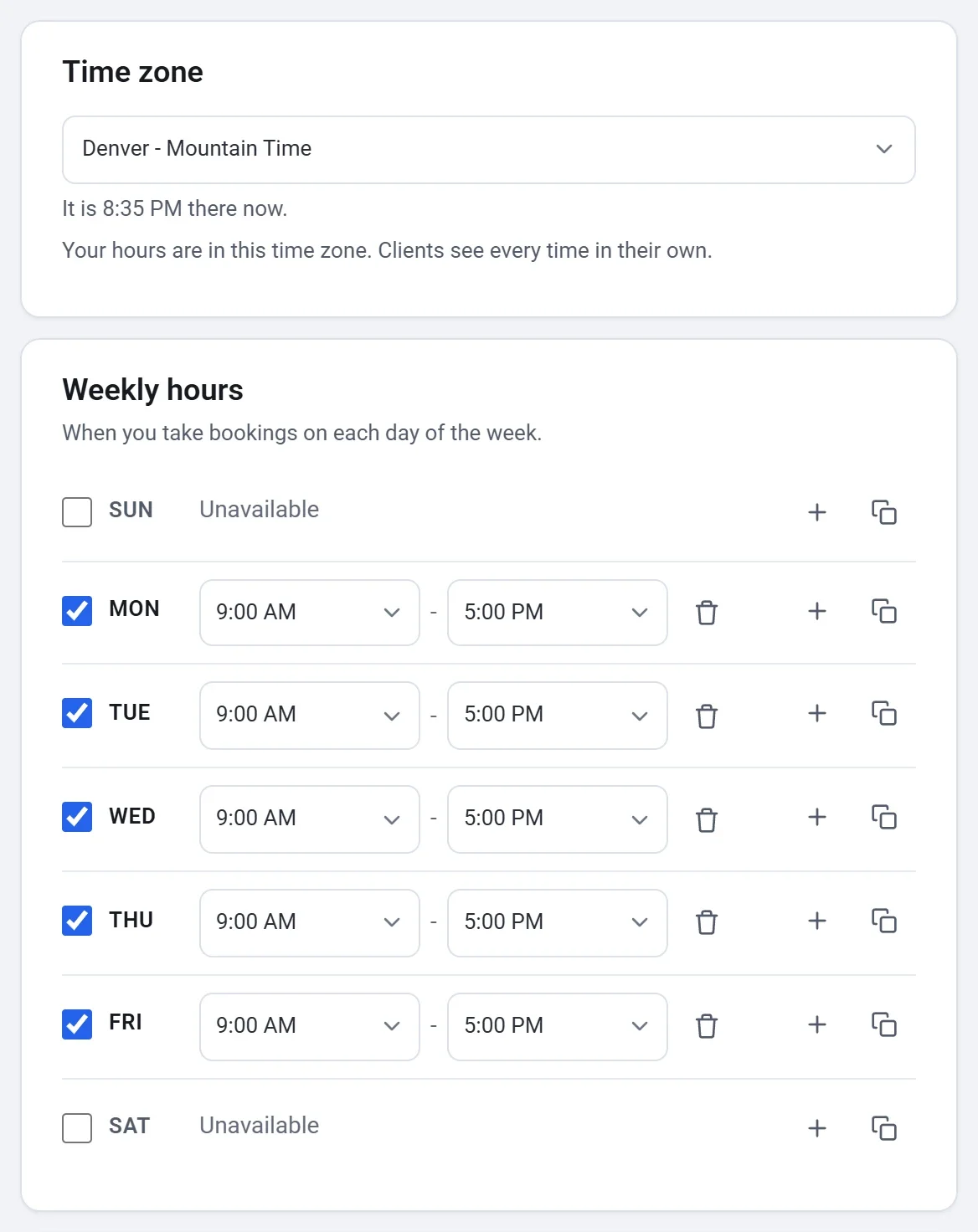
Open the Availability tab. Your hours are in the Time zone shown under the Google Calendar card. A new booking page starts in the Time zone in your account Settings, under Your details, or in your device's until you set one there. Change it here if you work in another one. Clients see every time in their own time zone, so a client in another country sees your 9:00 AM as the time it is where they are.
Weekly hours
- Under Weekly hours, set the hours you take bookings on each day, such as 9:00 AM to 5:00 PM. A day with no hours shows Unavailable.
- To take a break during a day, add a second set of hours to it. For example, 9:00 AM to 12:00 PM and 1:00 PM to 5:00 PM.
- To give other days the same hours, click the copy button beside a day, tick the days under Copy these hours to (or Every day), and click Apply.
Days off and one-day hours
- Under Days off and one-day hours, click Add dates.
- Pick one date or more on the calendar.
- Choose Closed all day for a holiday, or set other hours for those dates, such as a late opening before a kiln firing.
A date you change this way replaces your weekly hours on that day.
Limits
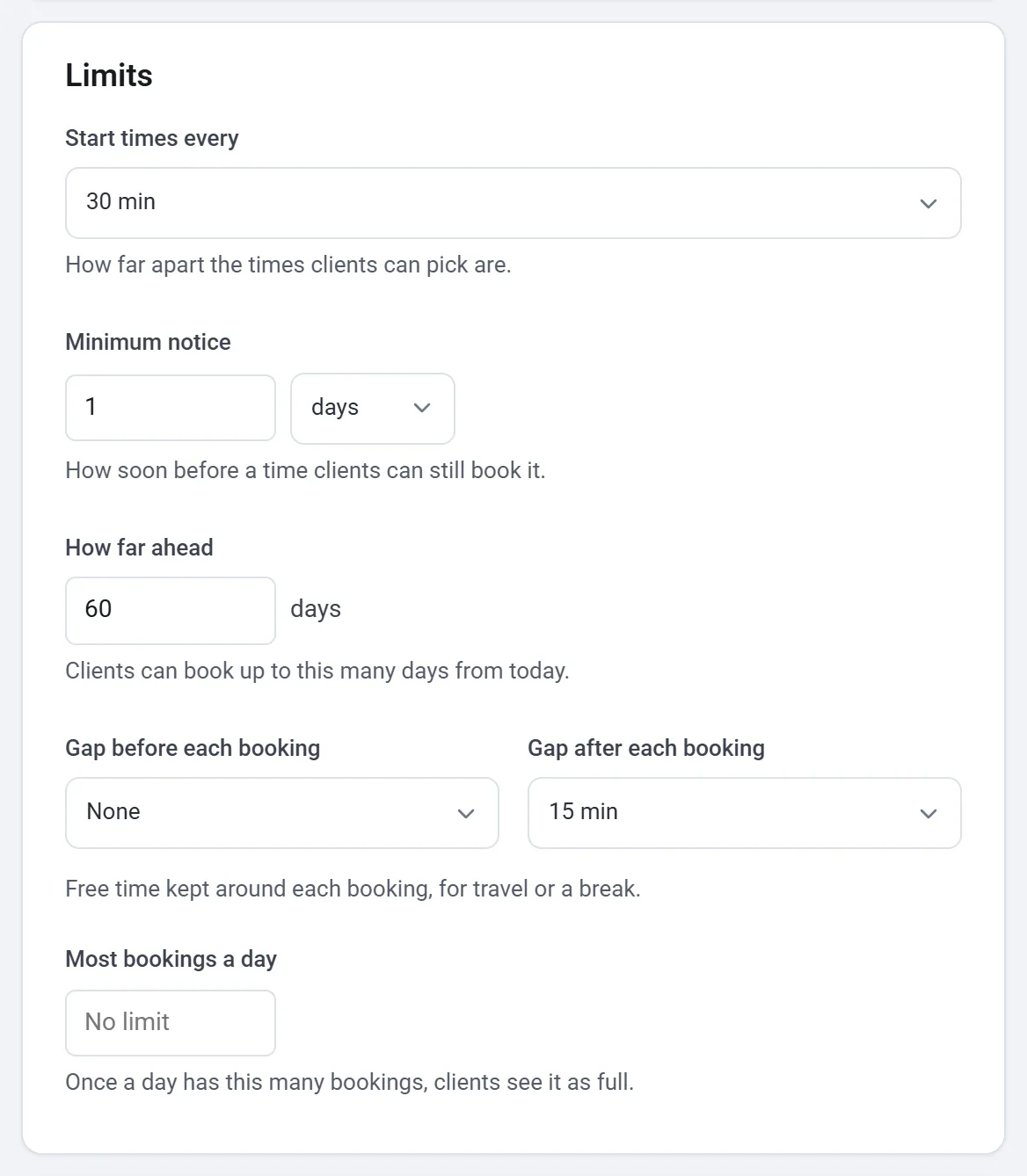
| Setting | What it does |
|---|---|
| Start times every | How far apart the times clients can pick are, from 5 minutes to 2 hours, or The service's length. |
| Minimum notice | How soon before a time clients can still book it, in minutes, hours or days. |
| How far ahead | How many days from today clients can book. |
| Gap before each booking, Gap after each booking | Free time kept around each booking, for travel or a break, such as 15 minutes to clean a wheel. |
| Most bookings a day | Once a day has this many bookings, clients see it as full. Leave it empty for No limit. |
A booking page started from scratch takes bookings at least 4 hours ahead and up to 60 days ahead, with no gaps and no daily limit. A template sets its own.
Google Calendar
The Google Calendar card on the same tab connects your calendar, so times you are busy there are not offered either. See Connect Google Calendar.
Check a day
To see why a time is or is not offered, use Check a day at the foot of the tab. Choose a Date to check and a Service to check, then click Check. Payly lists every start time that day with its reason, such as Too soon: inside your minimum notice, Busy in your Google Calendar or Clients can book it. It uses your saved settings.
Tip: The preview beside the tabs shows the times clients will see. Check it after a change.