
Create a booking page
Make a booking page where clients pick a service, a day and a time, then book for free or pay through your own PayPal or Stripe.
A booking page lets clients book your time online. They choose a service, pick a day and an open time in their own time zone, answer your questions, then book for free or pay. Payments go straight to your own PayPal or Stripe account, which charges its own standard processing fee. Payly adds no fee.
Before you start
- You need a Payly account. See Create your Payly account.
- To take payments you need a PayPal or Stripe account. You can build and preview your booking page first, and connect your account before clients start booking.
Create the booking page
- On Your sites, click New.
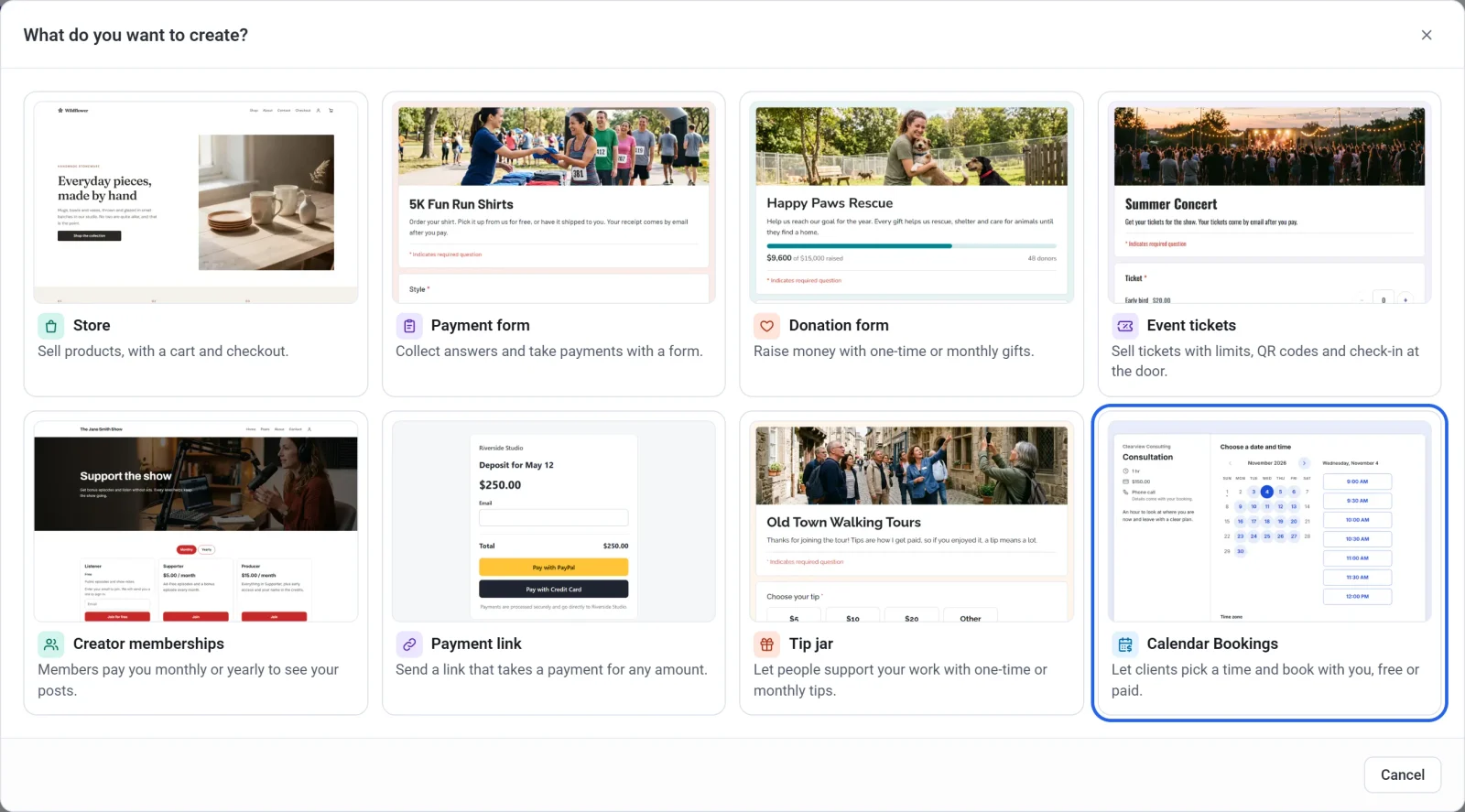
- Click Calendar Bookings.
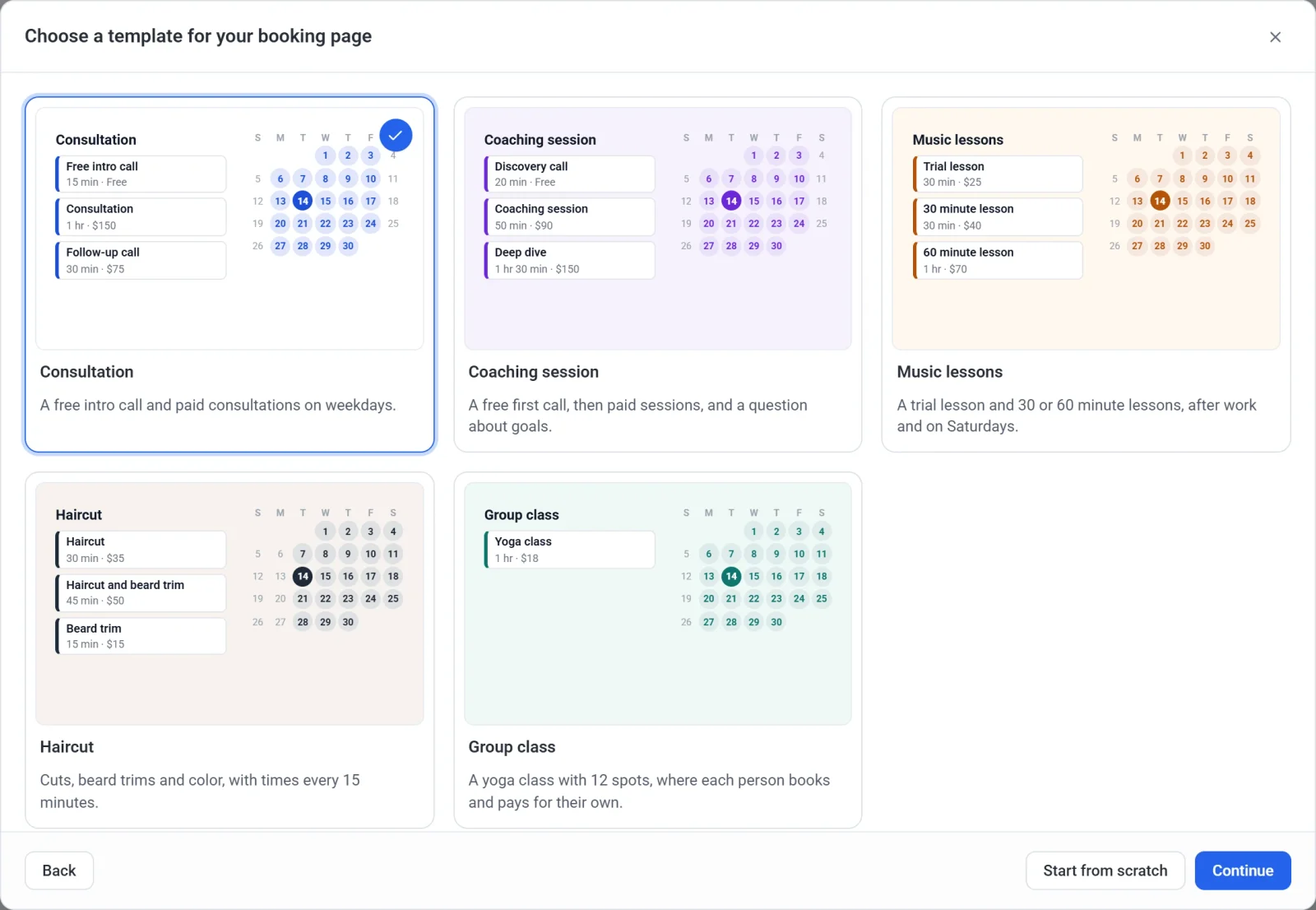
- Click the template closest to what you offer: Consultation, Coaching session, Music lessons, Haircut or Group class, then click Continue. A template gives you services, prices, hours and a question or two, all of which you can change. To begin with one free 30 minute meeting instead, click Start from scratch.
- Enter a Booking page name. Payly suggests a Booking page handle from the name and tells you whether it is available.
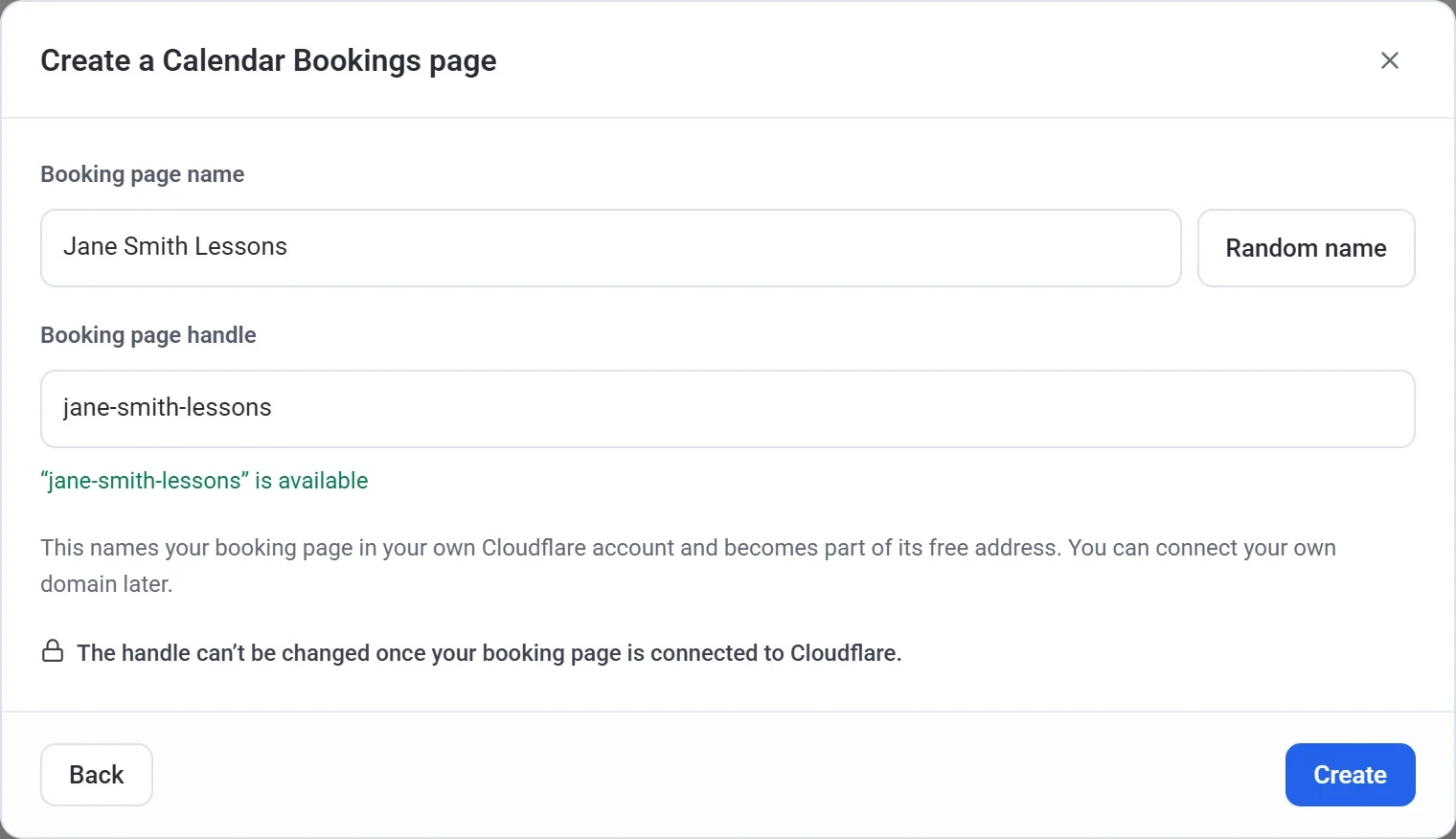
- Click Create. The builder opens with your booking page ready to edit.
Set it up
The builder has five tabs, with a preview of your booking page beside them. Payly saves your changes as you make them.
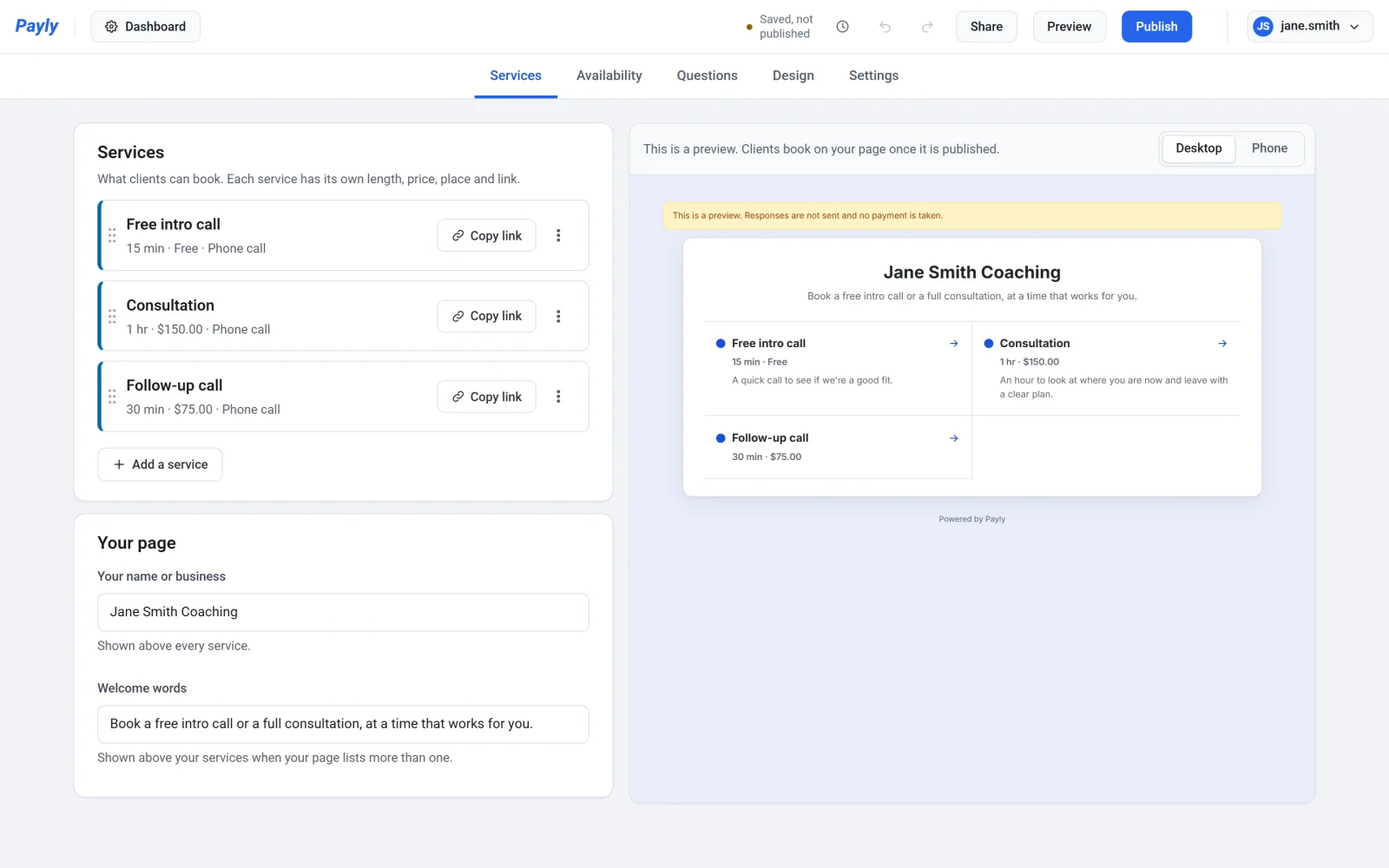
- Services: what clients can book, each with a length and a price or Free, and the name shown above them. See Set up your services.
- Availability: your time zone, weekly hours, days off and limits such as minimum notice. Google Calendar connects here too. See Set your hours and availability.
- Questions: what clients answer when they book. The Date and time card comes first and Name and Email always stay. Add any other question, such as a phone number or notes.
- Design: your header photo, logo, colors and font.
- Settings: what the done screen says, whether clients can cancel or change their booking, the reminder email, and Taking bookings. Switch that off to pause new bookings.
Connect payments and publish
- Go to your booking page's dashboard, then to Settings > Payments.
- Click Connect PayPal, Connect Stripe or both. See Connect PayPal and Connect Stripe. A booking page whose services are all free needs neither.
- Go back to the builder and click Publish. The first time you publish anything, Payly asks you to connect your own free Cloudflare account, which hosts the page. See Publish your form and share its address.
Then share your booking page's link, or add it to your own website. See Share your booking page or add it to your website.