
See and manage your bookings
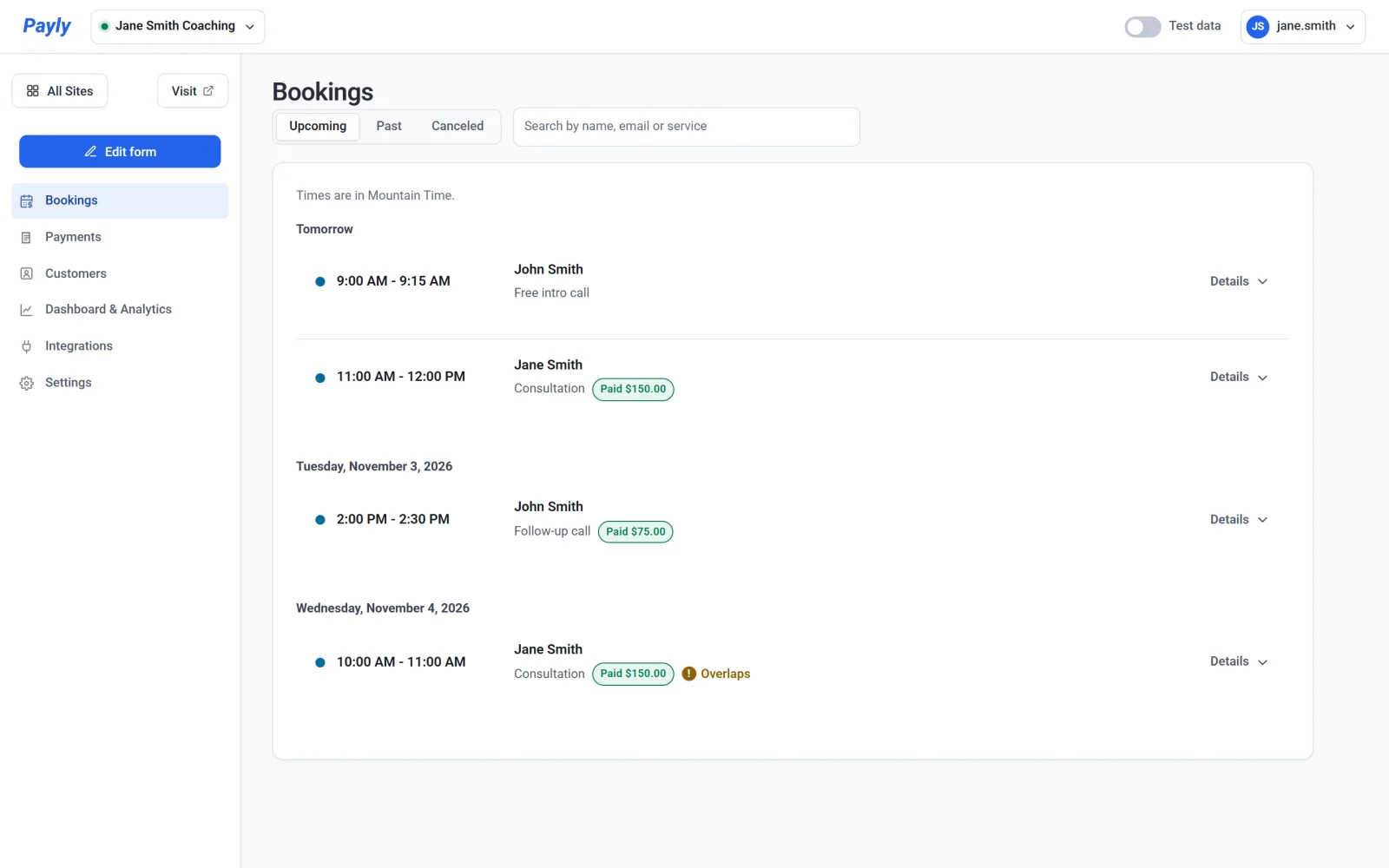
See upcoming, past and canceled bookings by day, open a booking to see the client's details, answers and payment, and cancel or refund it.
The Bookings screen lists every booking on your booking page, grouped by day, so you can see what is coming and look after each booking.
Open your bookings
- On Your sites, open your booking page's dashboard.
- Click Bookings in the side menu.
Choose Upcoming, Past or Canceled at the top, or search by name, email or service. Times are in your booking page's time zone, and a paid booking shows what was paid.
A booking's details
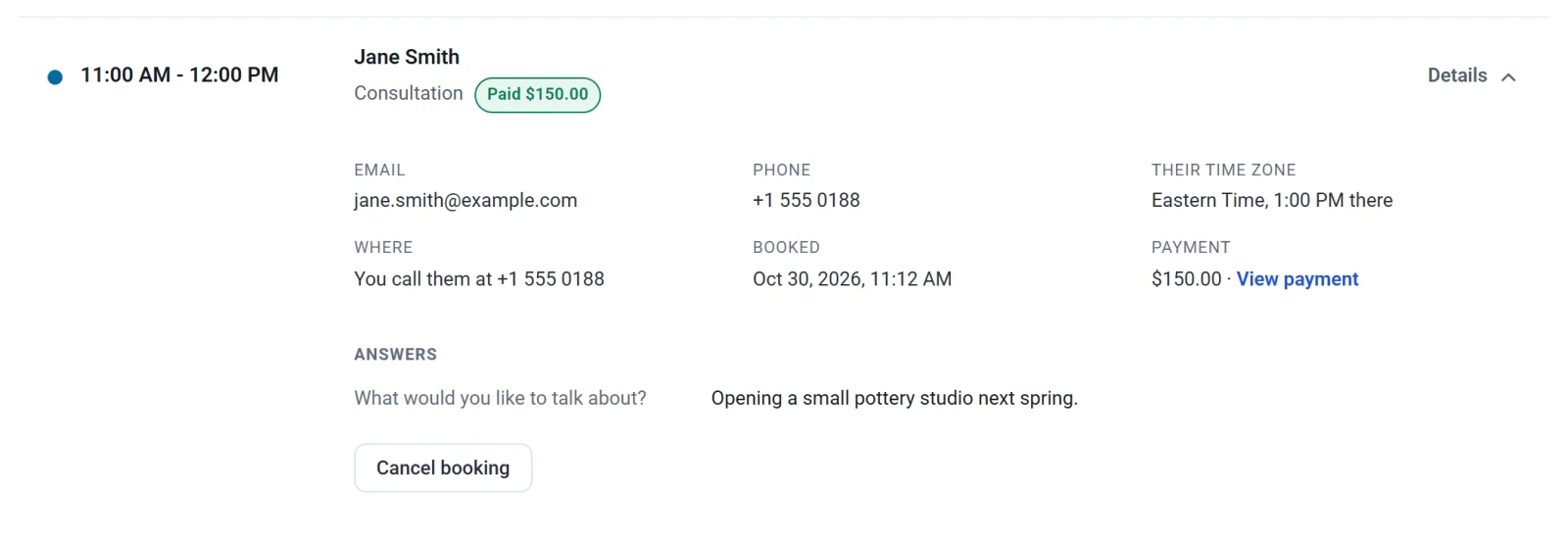
Click Details on a booking to open it. You see the client's email and phone, their time zone and the time it is for them, and where you meet. You also see when it was booked, the payment with View payment, and their answers to your questions. A canceled booking says who canceled it, and when, with their reason if they gave one.
Cancel a booking
- Open the booking and click Cancel booking.
- Write a Reason if you like. The client gets it in the email that tells them.
- For a paid booking, tick Refund the payment to give the whole payment back.
- Click Cancel booking, or Keep it to change your mind.
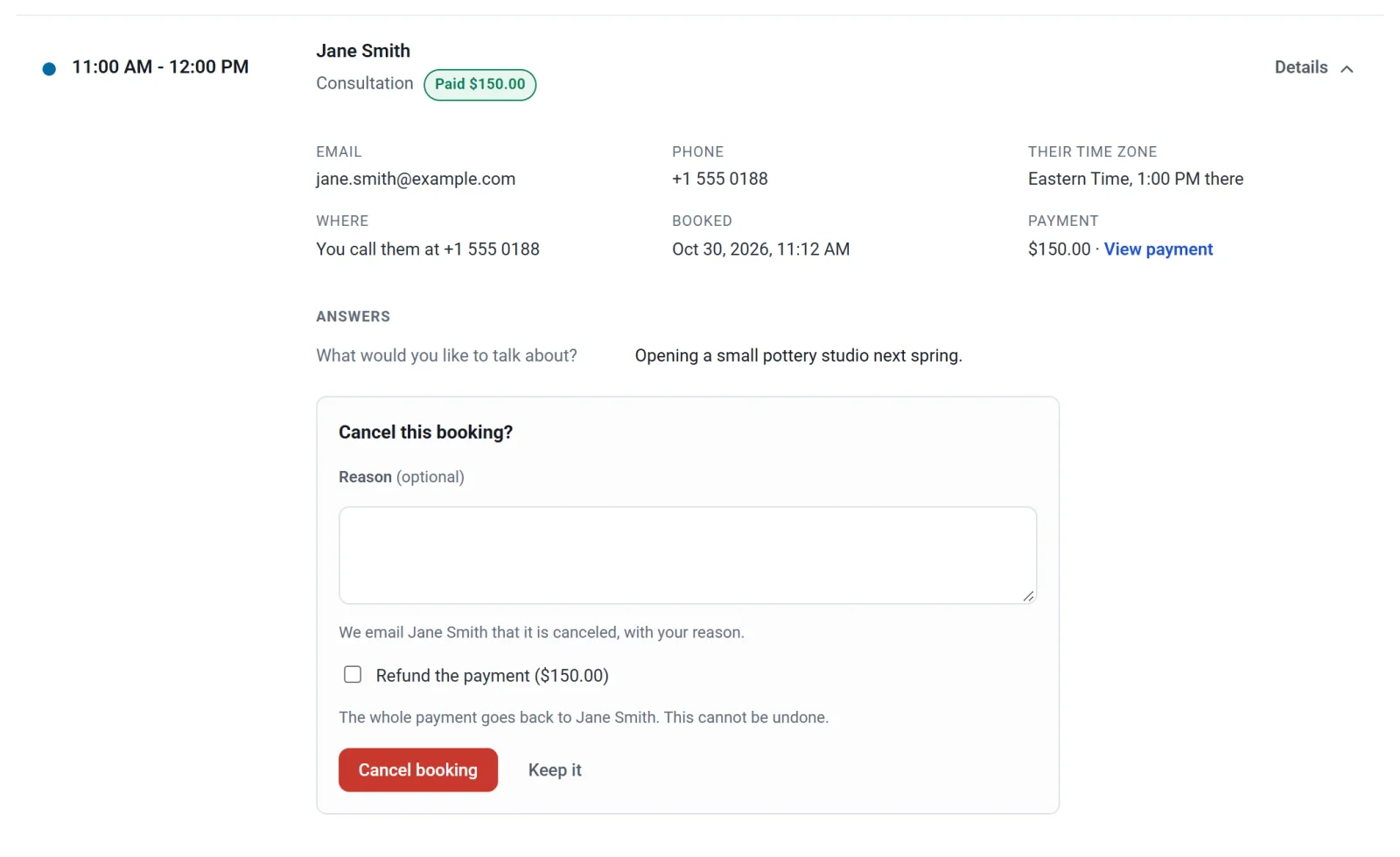
The time opens up again on your booking page, the client gets an email, and if Google Calendar is connected, the event is taken off your calendar.
Refund a canceled booking
When a client cancels a paid booking, the payment is not refunded by itself. Open the booking under Canceled, click Refund the payment, then Refund.
Overlapping bookings
A booking marked Overlaps clashes with another booking or a busy time in your calendar. It was paid for after its 30 minute hold ran out, so it was kept. Cancel one of them, or contact the client to agree on a new time.