
Connect Google Calendar
Connect Google Calendar so busy times are not offered on your booking pages, new bookings are added to your calendar, and Google Meet links are made for you.
Connecting Google Calendar keeps your booking pages in step with your day. Times you are busy in your calendar are not offered on your booking pages. Each new booking is added to your calendar, with its own Meet link when the service is set to Google Meet.
Connect
- Open a booking page in the builder and click the Availability tab.
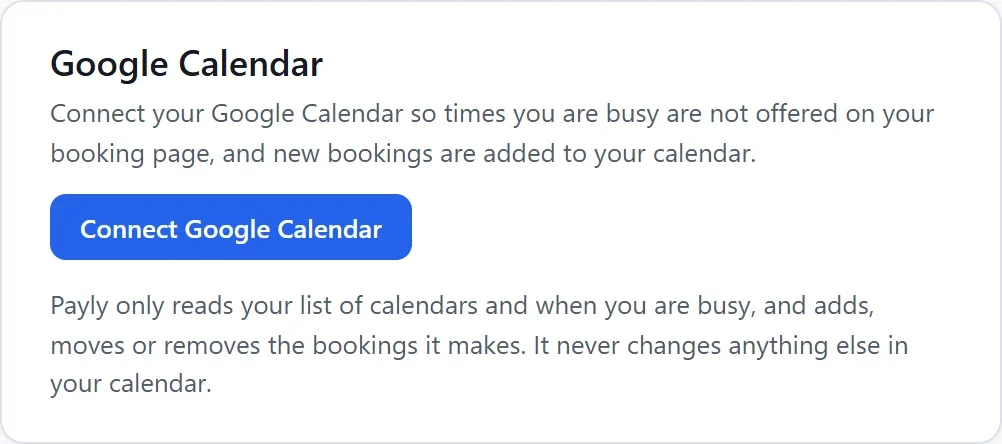
- On the Google Calendar card, click Connect Google Calendar. A Google window opens.
- Choose your Google account and allow Payly to use your calendars.
- Back in Payly, the card says Connected as and your Google account's email address.
Payly only reads your list of calendars and when you are busy, and adds, moves or removes the bookings it makes. It never changes anything else in your calendar.
Note: If your browser blocks the Google window, allow pop-ups for payly.org, then click Connect Google Calendar again.
Choose your calendars
- Check for conflicts: tick each calendar whose busy times should be kept off your booking pages, such as your work calendar and a shared studio calendar. Your main calendar is marked Main calendar.
- Add new bookings to: the calendar each new booking goes into, or Do not add bookings to a calendar.
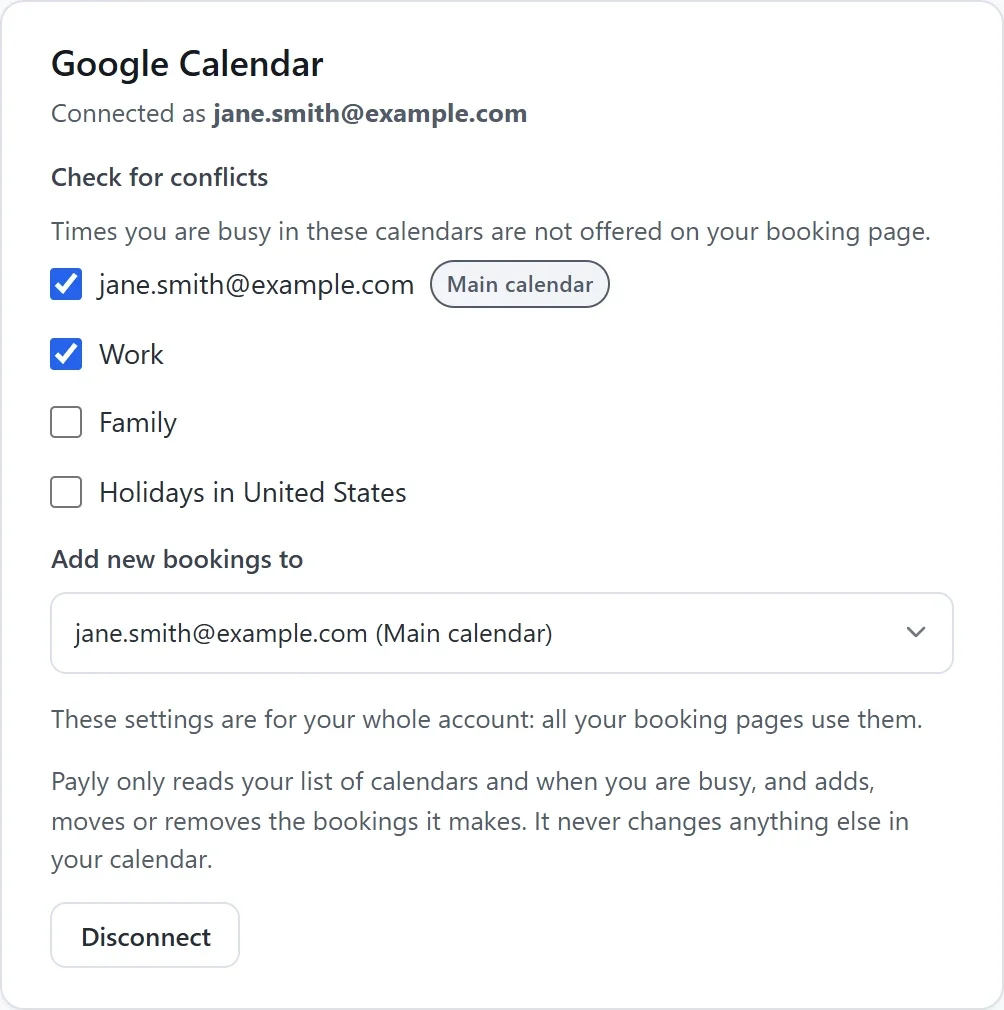
Your choices save as you make them. They are for your whole account: all your booking pages use them. Only the account owner or an admin can change them.
An event blocks its time unless it is marked as free in Google Calendar or you said no to it. All-day events block the whole day.
What happens once you are connected
- Payly keeps checking your calendar, so a new event blocks its time soon after you add it.
- Each booking is added to your calendar as "service with client's name", with the client as a guest and their details and answers in the notes. A group class is one event with each client as a guest. Google does not email the client: Payly sends its own emails.
- When a booking is canceled, its event is taken off your calendar. When the time changes, the event moves.
- Services can use Google Meet as the place you meet. Each booking then gets its own Meet link, in your calendar and in the client's emails.
If the connection is lost
If Google stops letting Payly in, for example after you remove Payly's access in your Google account, the card says Payly can no longer reach your Google Calendar. Click Connect again.
Disconnect
Click Disconnect on the card, then Disconnect in the box that opens. Busy times are no longer blocked and new bookings are not added to your calendar. Bookings already in your calendar stay there.