
Share your booking page or add it to your website
Share your booking page's link or one service's link, add your booking page to any website with a few lines of code, or put it on a Payly site.
Once your booking page is published, clients can reach it from its link, from your own website, or from your Payly store or site.
Share the link
- Open your booking page in the builder and click Share in the top bar.
- Under Your booking page, click Copy link.
- To send someone straight to one service, use A link to one service. A hidden service can only be booked through its own link.
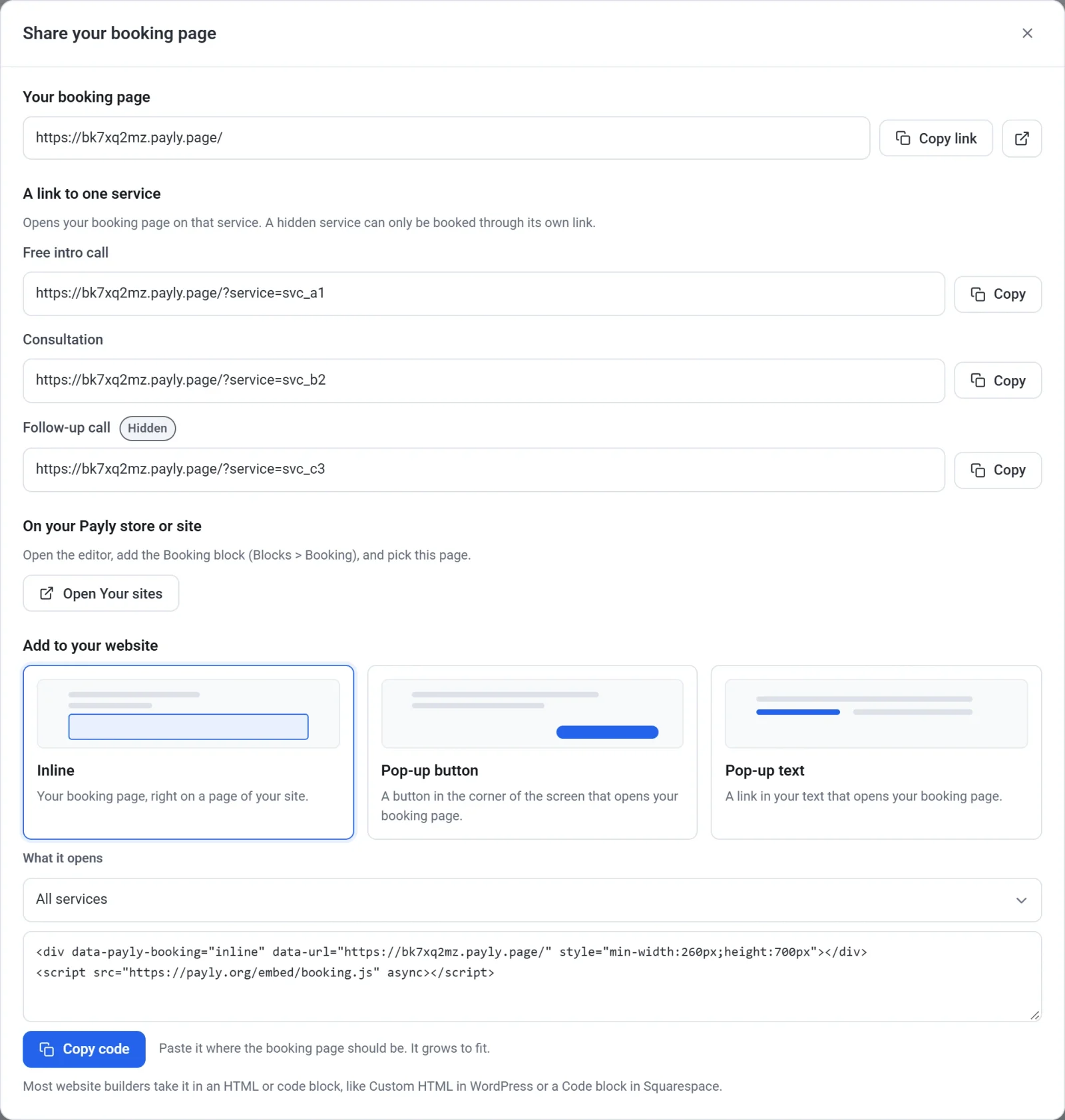
The links and codes work once your booking page is published. Your booking page has a free payly.page address. To use your own domain, such as example.com, see Connect a custom domain.
Add it to your website
- In the Share window, under Add to your website, choose how it shows:
- Inline: your booking page, right on a page of your site. It grows to fit.
- Pop-up button: a button in the corner of the screen that opens your booking page.
- Pop-up text: a link in your text that opens your booking page.
- If your page has more than one service, keep All services under What it opens, or pick one.
- For a button or a link, set its words (at first, Book a time) and, for a button, its Button color and Text color.
- Click Copy code.
- Paste the code into your website. Most website builders take it in an HTML or code block, like Custom HTML in WordPress or a Code block in Squarespace.
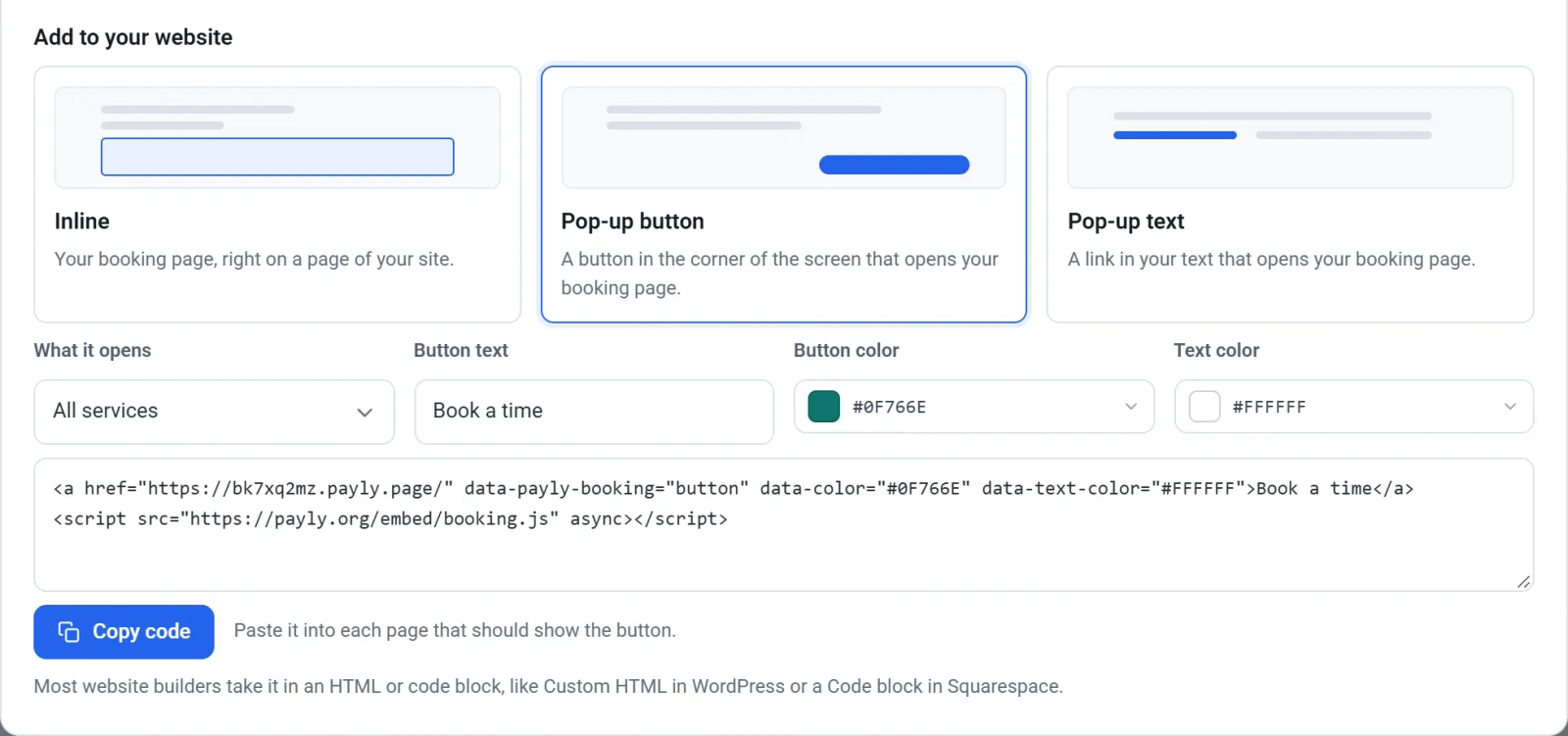
The code shows your published booking page, so the changes you publish appear on your website by themselves.
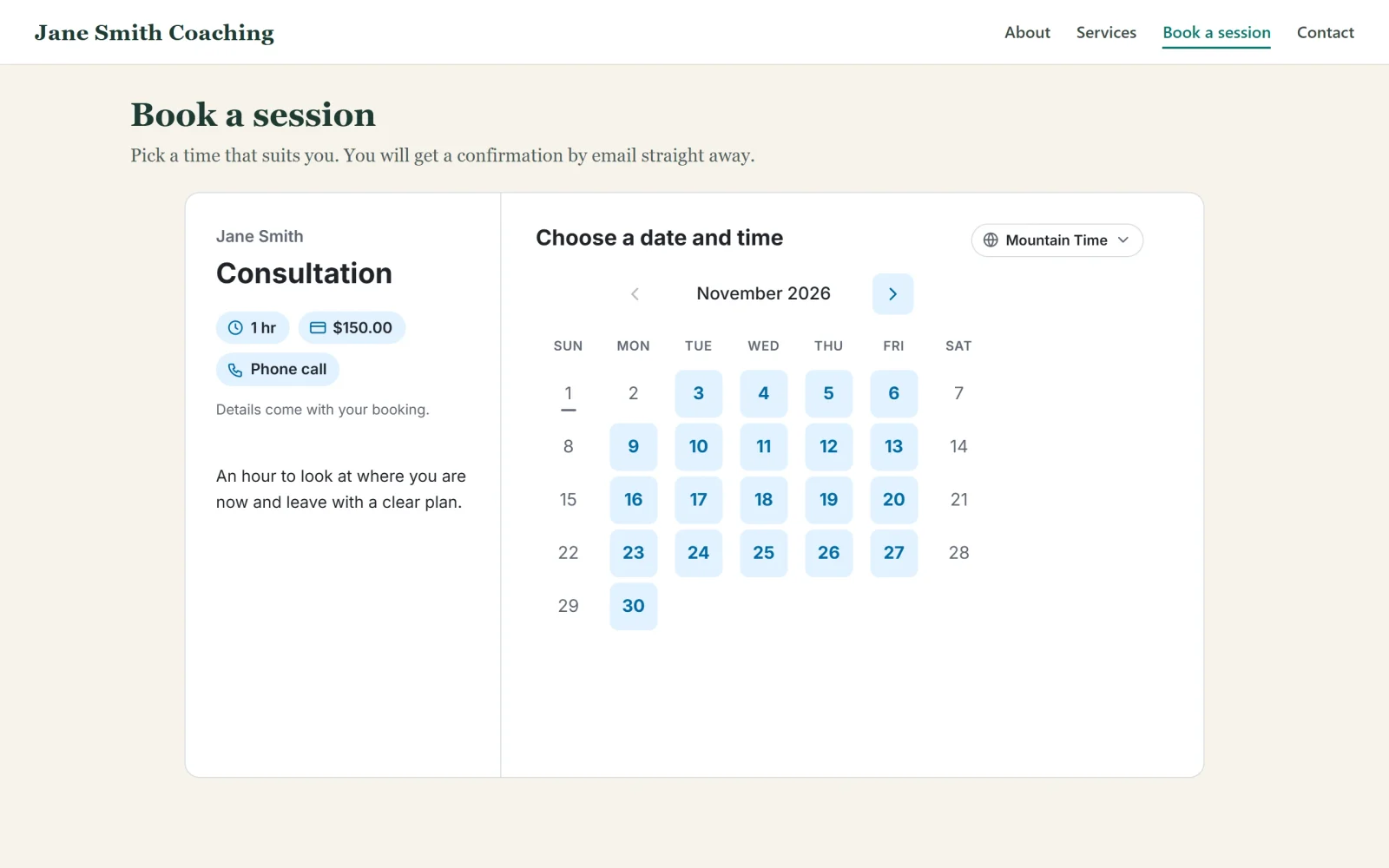
On your Payly store or site
- Open your store or site in the editor. In the Share window, the button under On your Payly store or site opens it in a new tab. If you have more than one, it opens Your sites instead.
- Open Blocks and drag Booking onto a page. It is in the Media group, beside Embed.
- Under Booking page, choose yours. Under Opens on, keep All services or pick one.
- Publish your store or site.
Clients pick a time and book without leaving your site.