
Set up your services
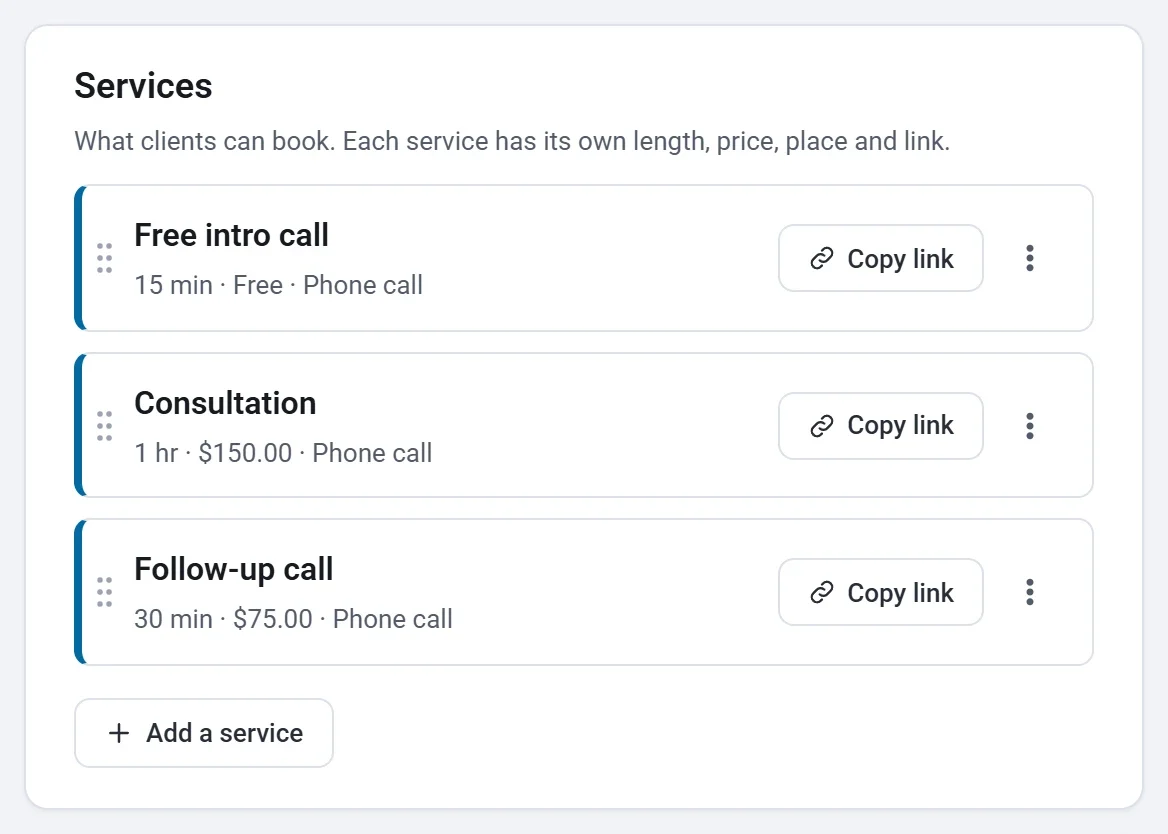
Add the services clients can book, each with a length, a price or Free, a description, a place to meet and a link of its own.
A service is something a client can book, such as a 30 minute consultation or a one hour wheel throwing lesson. One booking page can offer several services, each with its own length and price. Clients choose a service first, then pick a time.
Add a service
- Open your booking page in the builder and click the Services tab.
- Click Add a service.
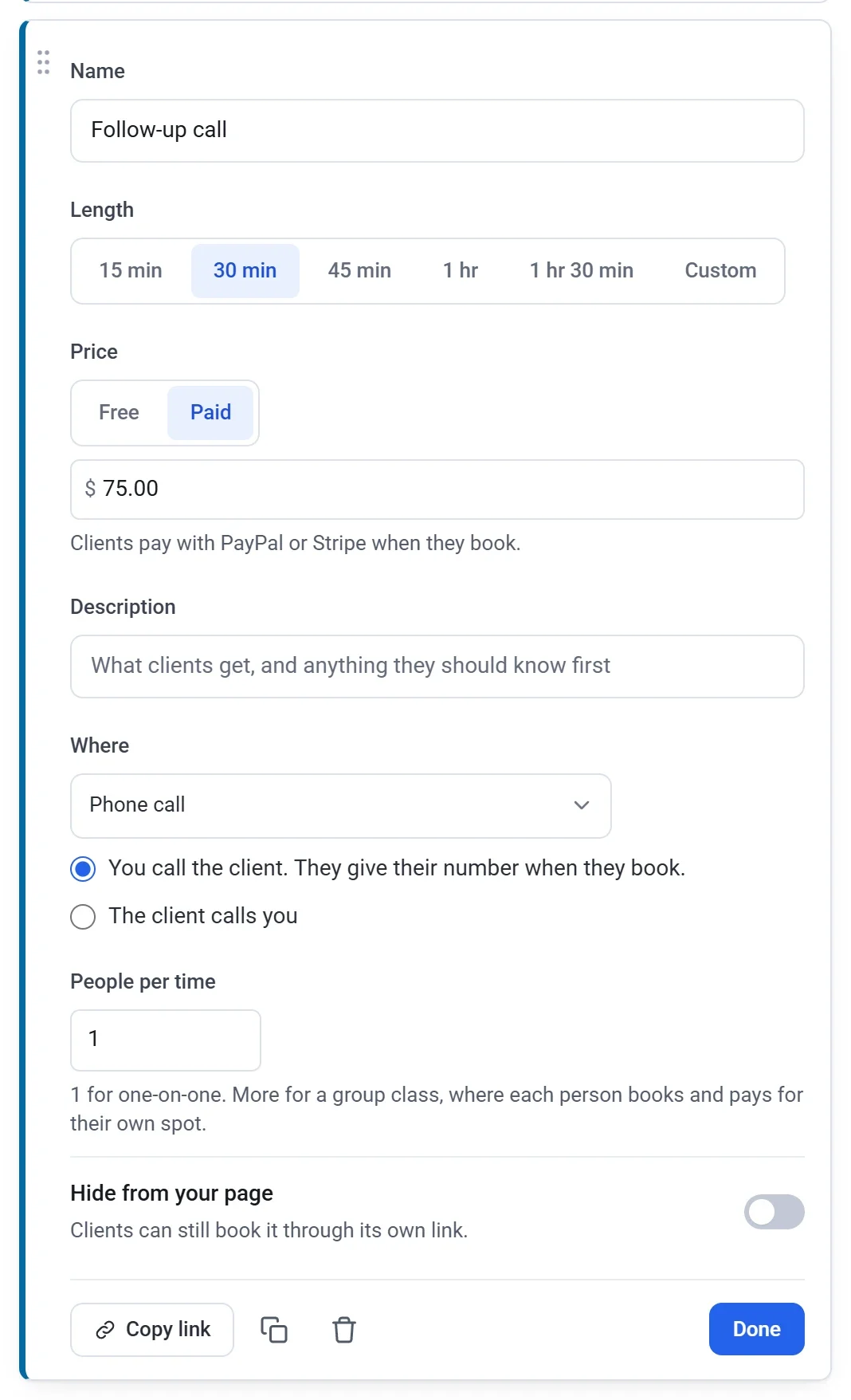
- Enter a Name, such as Wheel throwing lesson.
- Choose its Length: 15, 30, 45, 60 or 90 minutes, or Custom for any length from 5 minutes to 12 hours.
- Under Price, leave it Free, or choose Paid and enter the price. See Take payments for bookings.
- Write a Description if you like: what clients get, and anything they should know first.
- Choose Where you meet (below).
Where you meet
- In person: enter the Address clients come to.
- Phone call: either you call the client, who gives their number when they book, or the client calls you at Your phone number.
- Video call: paste your Video call link, such as your own Zoom room.
- Google Meet: a Meet link is made for each booking and sent to the client. Connect Google Calendar on the Availability tab first. See Connect Google Calendar.
- No location: nothing is shown.
Group classes
Set People per time to more than 1 for a group class, such as a class with six wheels. Each person books and pays for their own spot, and the page shows how many spots are left until the time is full.
Hide a service, or send its link
Every service has its own link that opens your booking page on that service. Click Copy link on the service to send it to a client. The links work once your booking page is published.
Turn on Hide from your page to keep a service off your booking page. Clients can still book it through its own link, for example a private lesson you offer by invitation.
Order, copy and delete
Drag services to change the order clients see them in. Copy a service to start a similar one, or delete one you no longer offer. A booking page always keeps at least one service.
Your name and welcome words
Under Your page, Your name or business is shown above every service. Welcome words, a line or two about what you offer, are shown above your services when your page lists more than one.