
Add staff to your booking page
Let clients book the people who work with you, each with their own hours, services, emails and Google Calendar.
With the Staff tab, one booking page can take bookings for a whole team, such as the teachers at a pottery studio. Clients choose who they book with, or take anyone available. The people you add do not need a Payly account: their bookings reach them by email, and in their Google Calendar once they connect it.
Add a person
- Open your booking page in the builder and click the Staff tab.
- Click Add a person.
- Enter their Name, which clients see, and their Email, where their booking emails go.
- Click Add.
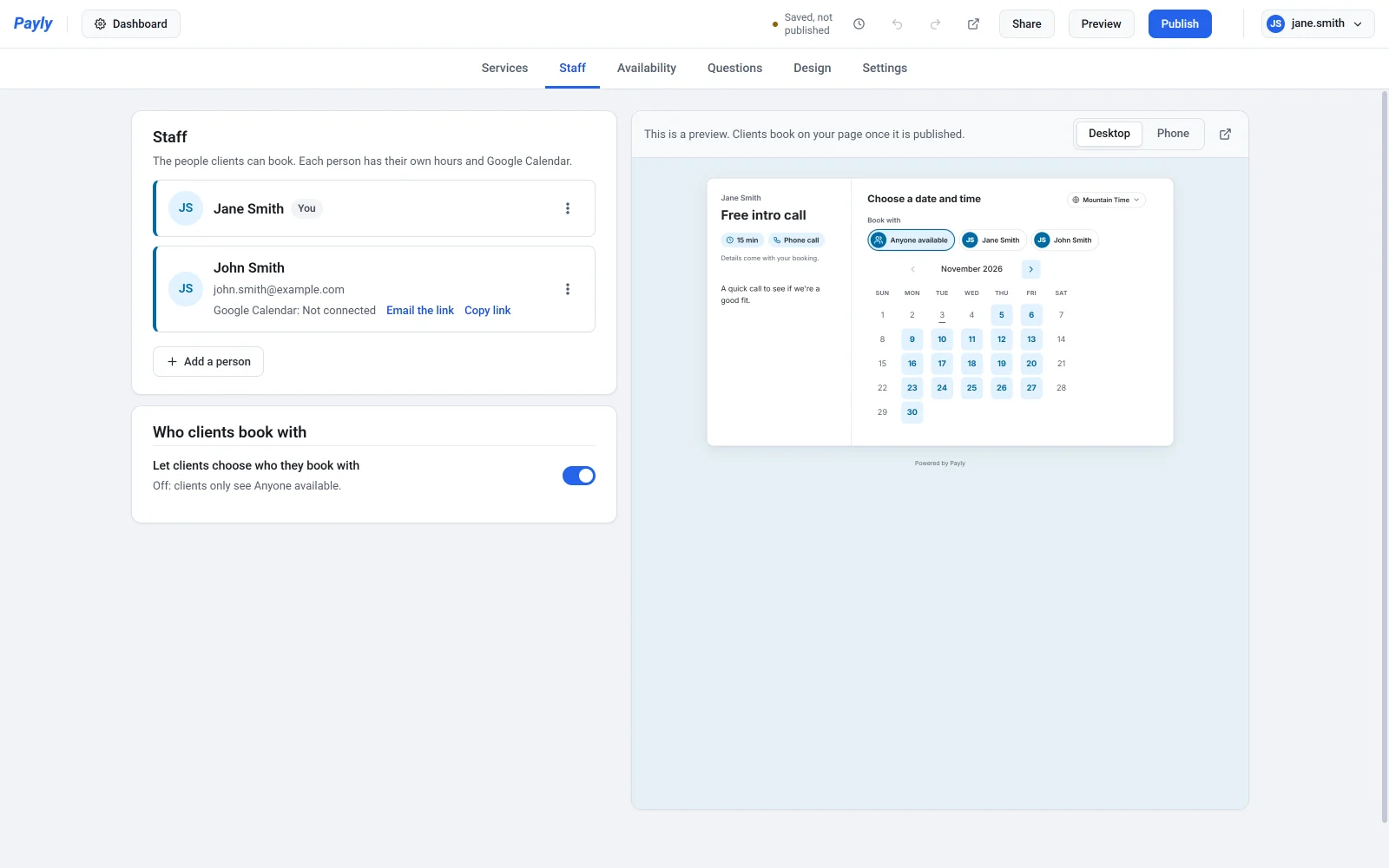
Their hours start as a copy of yours. You are on the list too, first and marked You. If your row asks for your name, click it and enter one, since clients see it. You can add up to 20 people besides yourself.
Change a person
Click a person's name to open it. You can change their Name and Email, and add a Photo. Clients see the photo next to the name, or the person's initials when there is none. Click Done when you are finished.
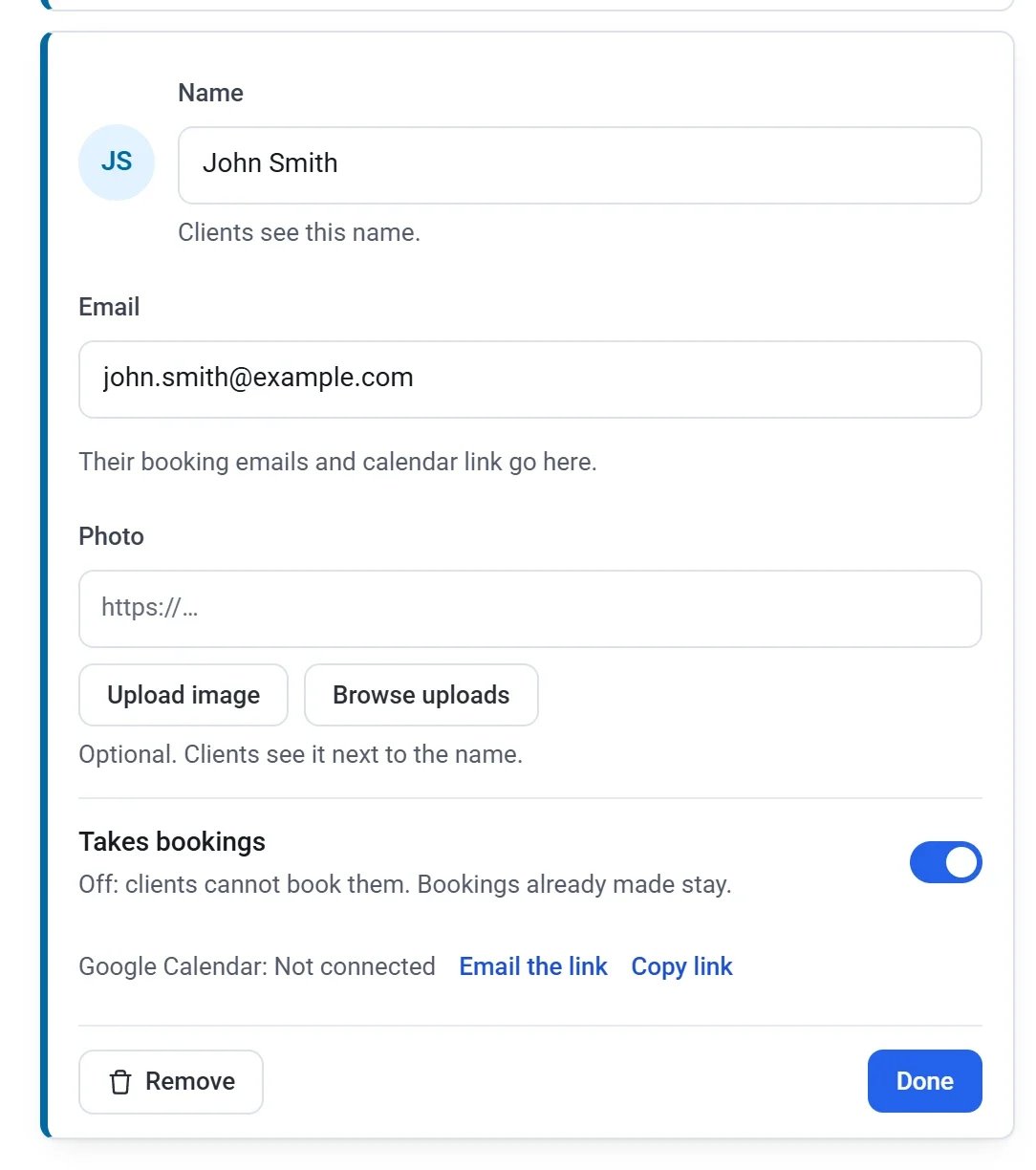
To stop someone taking bookings for a while, turn off Takes bookings. Bookings already made stay. You can turn it off for yourself too, if only your staff take bookings.
Choose who offers each service
Everyone offers every service at first. To change that:
- Click the Services tab and open a service.
- Under Who offers this, untick the people who do not offer it. At least one person must offer it.
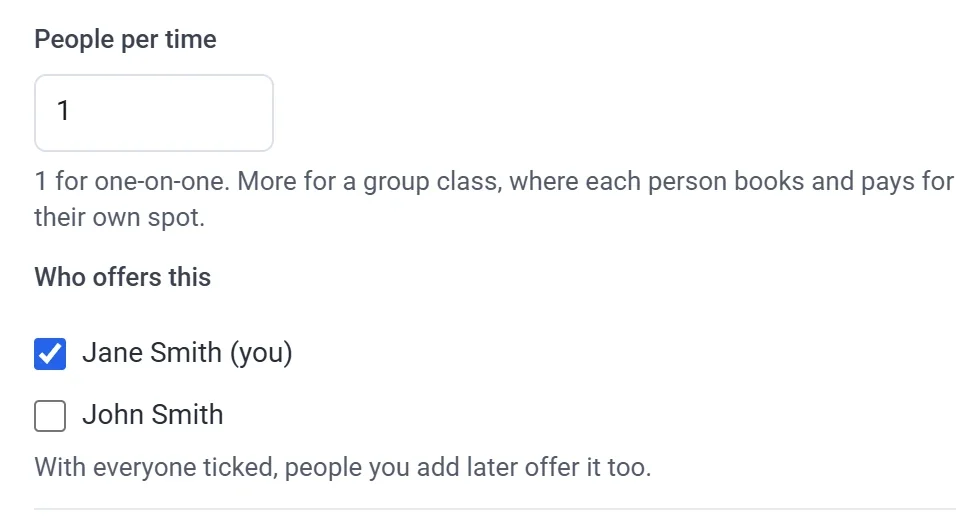
With everyone ticked, people you add later offer it too. A group class, with People per time over 1, is always yours and uses your hours.
Set each person's hours
- Click the Availability tab.
- Under Whose hours, choose the person.
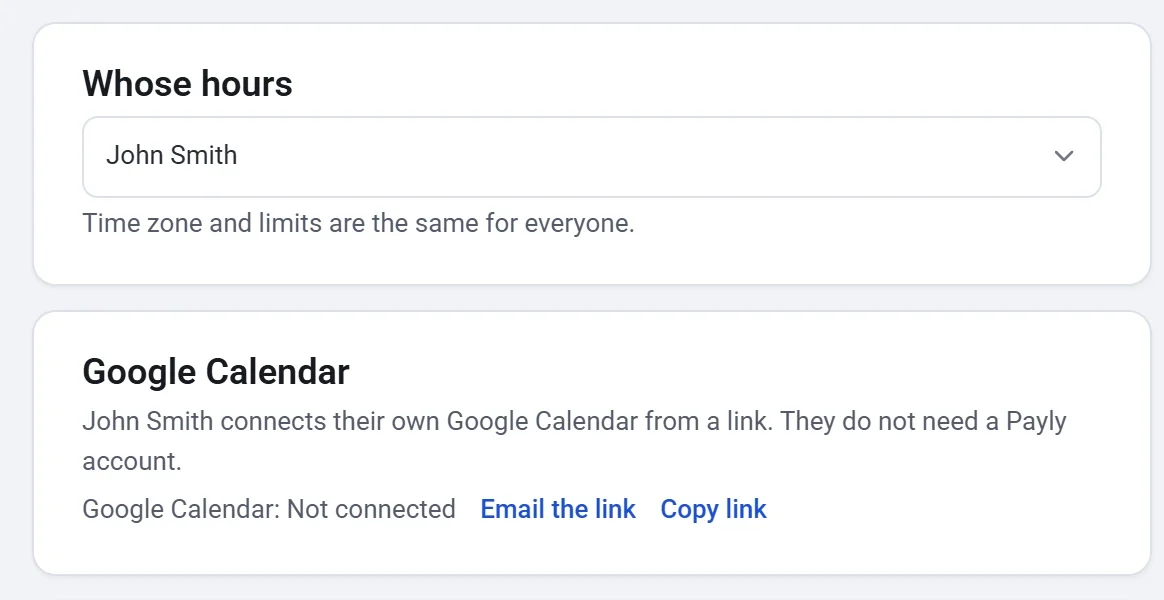
- Set their Weekly hours and Days off and one-day hours the same way as your own. See Set your hours and availability.
The time zone and the limits, such as minimum notice and the gaps around each booking, are the same for everyone. Each person's limits count only their own bookings: with Most bookings a day set to 4, each person can take 4 bookings a day. Check a day checks the person you chose.
Connect their Google Calendar
Each person connects their own Google Calendar from a link you send them. Times they are busy in their main calendar are then not offered for them, and their new bookings are added to it.
- Find the person on the Staff tab. Their row says Google Calendar: Not connected.
- Click Email the link to email it to them, or Copy link to send it yourself.
They open the link, click Connect Google Calendar and allow access on Google's screen. Their row then says Connected as and their Google account's email address. If it says Needs connecting again, send them the link again. Disconnect stops using their calendar. Bookings already in it stay there.
Until a person connects, their busy times are not checked. If your own Google Calendar is connected, their bookings go into yours, with them added as a guest.
Note: Each link works only for the person it was made for. If you change their email, the old link stops working, so send them a new one. Only the account owner or an admin can send these links.
What clients see
When two or more people offer a service, clients see Book with above the calendar: Anyone available first, then each person. Choosing a person shows only that person's free times.
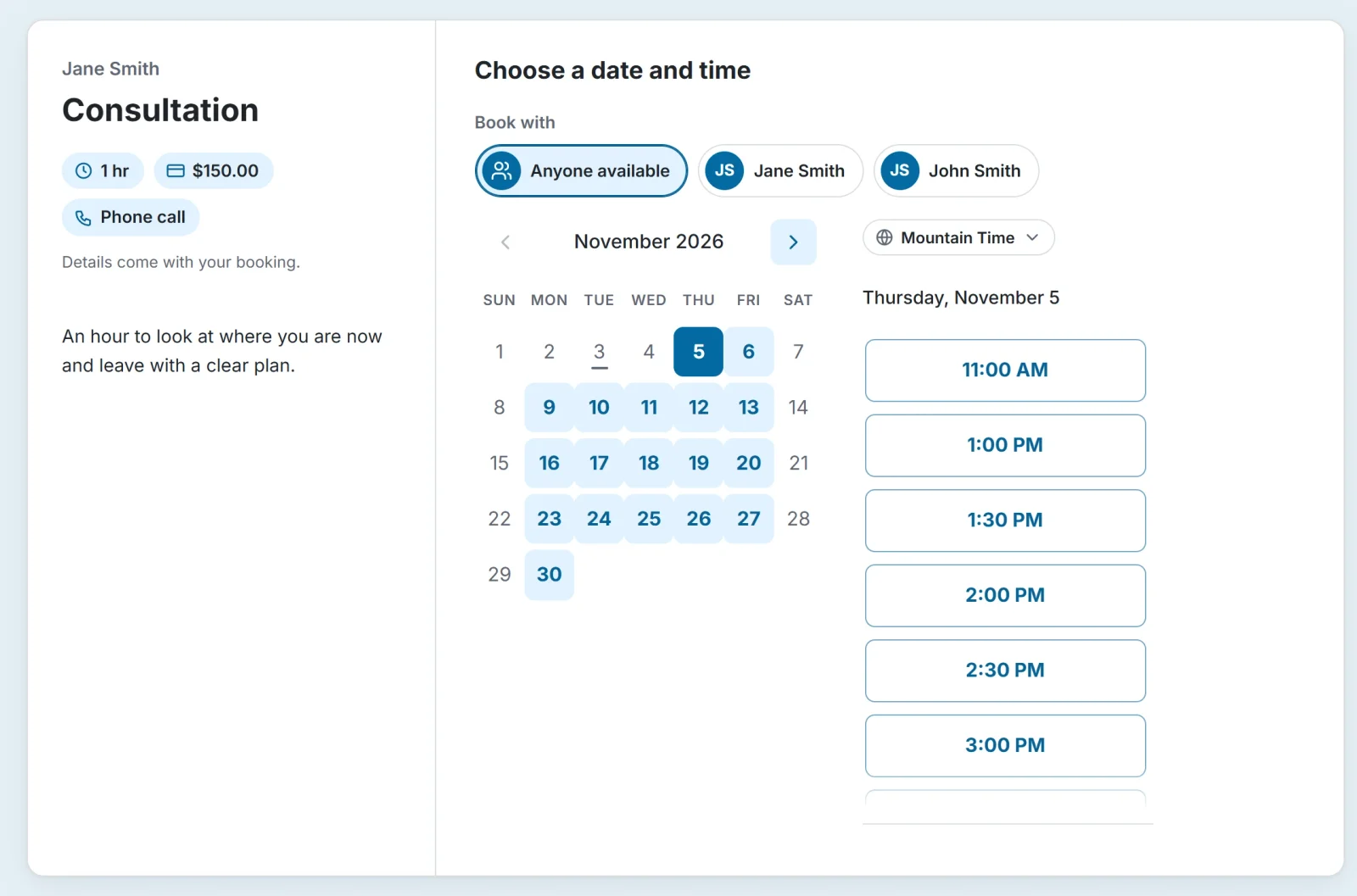
With Anyone available, clients see every time at least one person is free. Payly gives the booking to the free person with the fewest upcoming bookings, and on a tie, to the one higher on your Staff tab. The done screen and the client's emails say who the booking is with.
To have Payly choose every time, turn off Let clients choose who they book with on the Staff tab. Clients then do not pick anyone, and each booking goes to whoever is free, as with Anyone available.
Click Publish when you are done, so your booking page shows your changes.
Emails
- A staff member gets an email when one of their bookings is made, canceled or given a new time. Replies to it reach the client.
- You still get your usual emails for every booking on the page, with a line saying who it is with.
- Clients' emails say who their booking is with.
See each person's bookings
On the Bookings screen, each booking says who it is with, such as With John Smith. To see one person's bookings, choose them in the menu beside the search box, which starts on Everyone.
Remove a person
Open the person, click Remove, then click Remove again in the box that opens. Clients can no longer book them, and their calendar link stops working. Bookings already made stay on your Bookings screen. If a client changes the time of one, it goes to whoever is free.