
Make a payment link
Create a payment link: say what it is for, set the amount, and copy the address to send to anyone who needs to pay you.
A payment link is a web page that takes a payment for you. Whoever has the address can open it and pay with PayPal or a card, with no account and no store needed. The money goes straight to your own PayPal or Stripe account, and Payly takes no fee.
Before you start
- You need a Payly account. See Create your Payly account.
- You need a PayPal account, a Stripe account or both, to receive the money. You connect them below.
- Your links run in your own free Cloudflare account. The first time you create a link, Payly asks you to connect it if you have not already. See Connect your Cloudflare account.
Make your first payment link
- Click New on the Your sites screen.
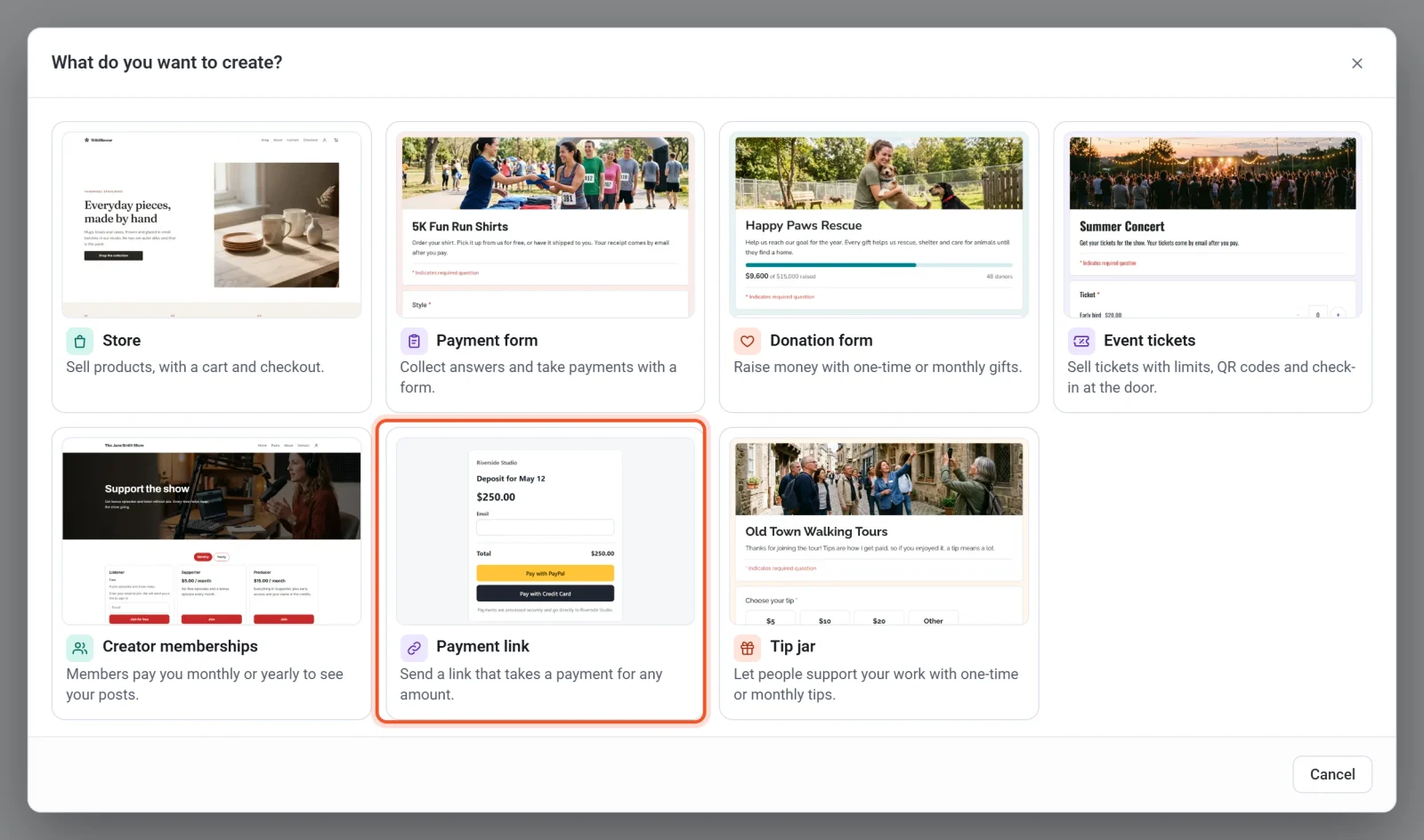
- Click Payment link in the What do you want to create? window.
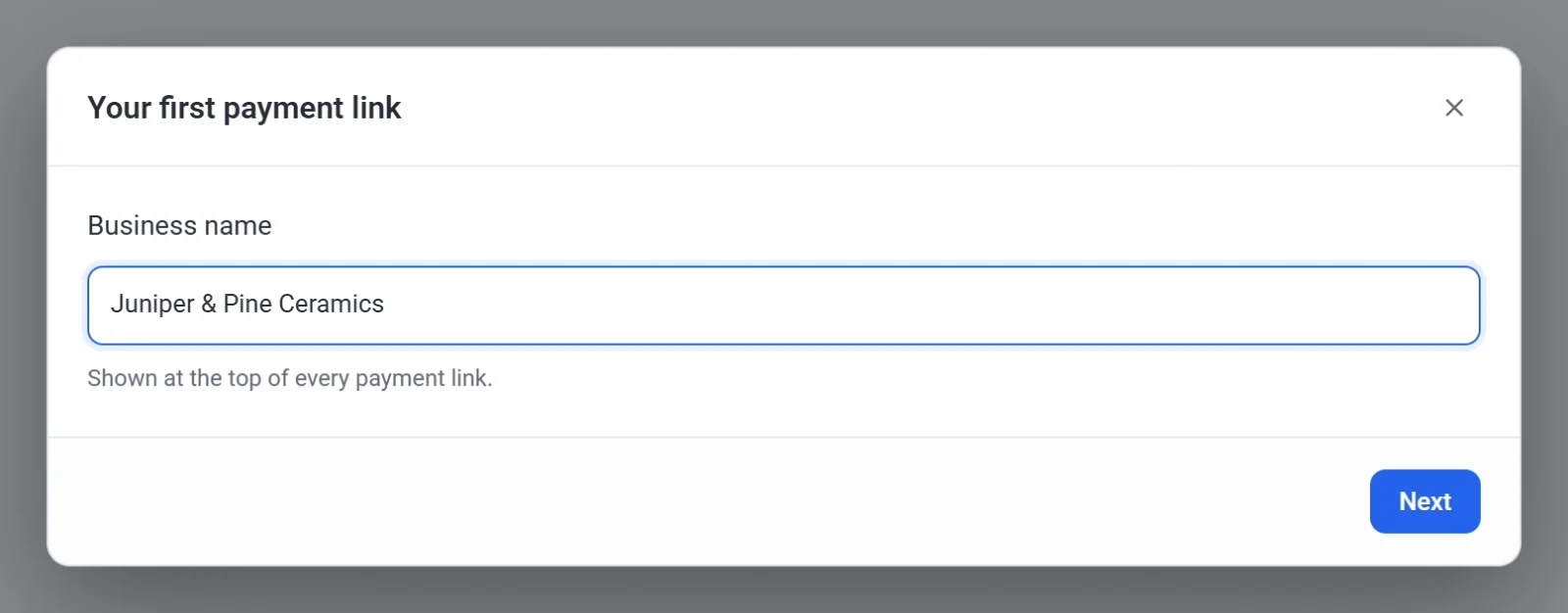
- Type your business name in Business name and click Next. Payly asks only the first time. It shows this name at the top of every payment link.
- Type what the payment is for in What it’s for, such as "Custom mug deposit". Payers see these words as the title of the page.
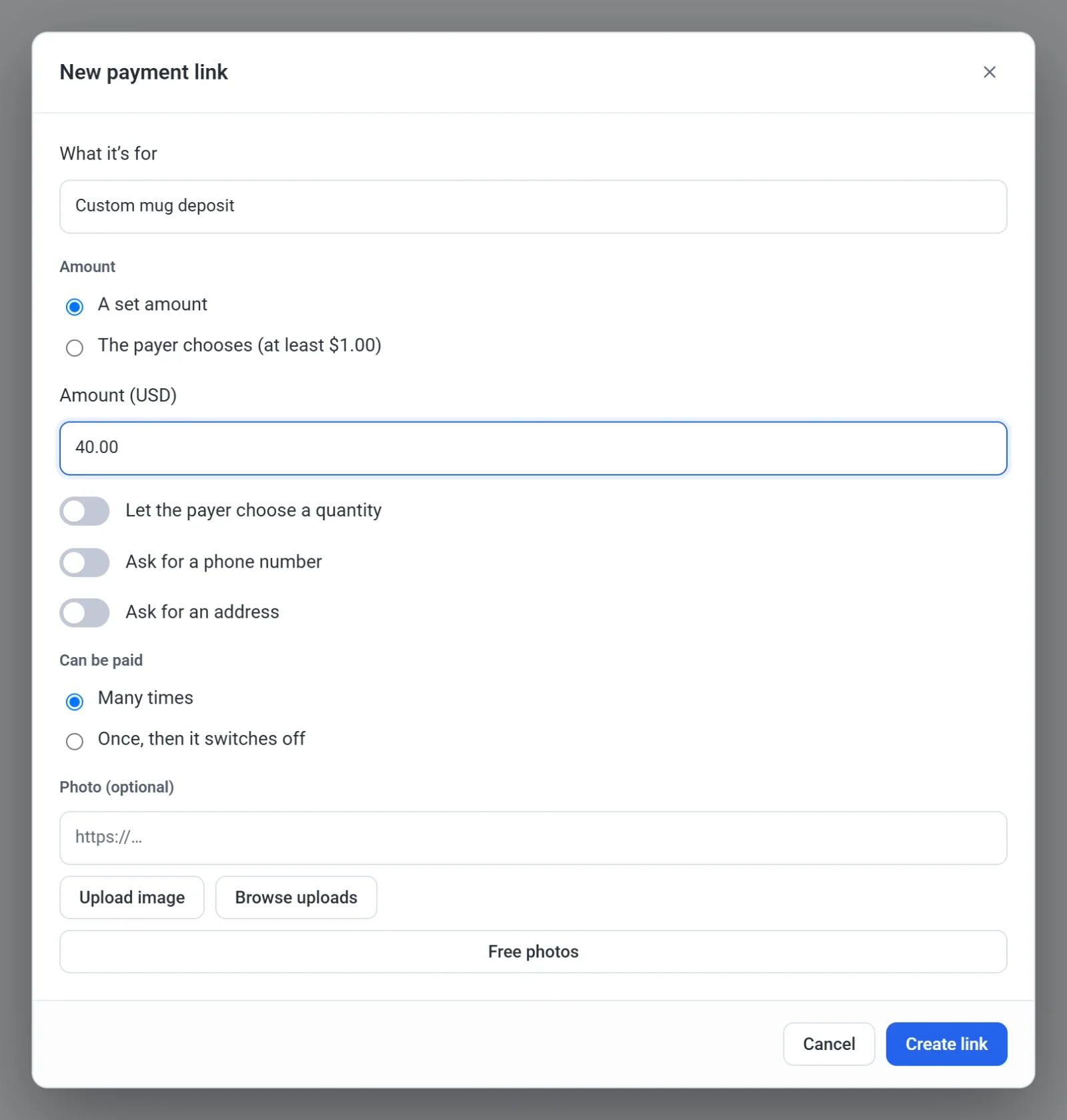
- Choose A set amount under Amount and type the price in Amount (USD). To let the payer type the amount instead, choose The payer chooses (at least $1.00).
- Turn on Let the payer choose a quantity (set amounts only), Ask for a phone number or Ask for an address if you need them. The page then asks the payer for those details.
- Choose Many times or Once, then it switches off under Can be paid. One-time, pay what you want or by quantity explains these choices.
- Add a picture if you want one. Click Upload image, Browse uploads or Free photos under Photo (optional). Photos are kept in your own Cloudflare account, so Payly may ask you to connect it first.
- Click Create link. If a window asks you to connect Cloudflare, follow it. The first time, a box then shows Payly setting up your links, and it closes by itself when it is done.
- Click Copy link when Your link is ready appears.
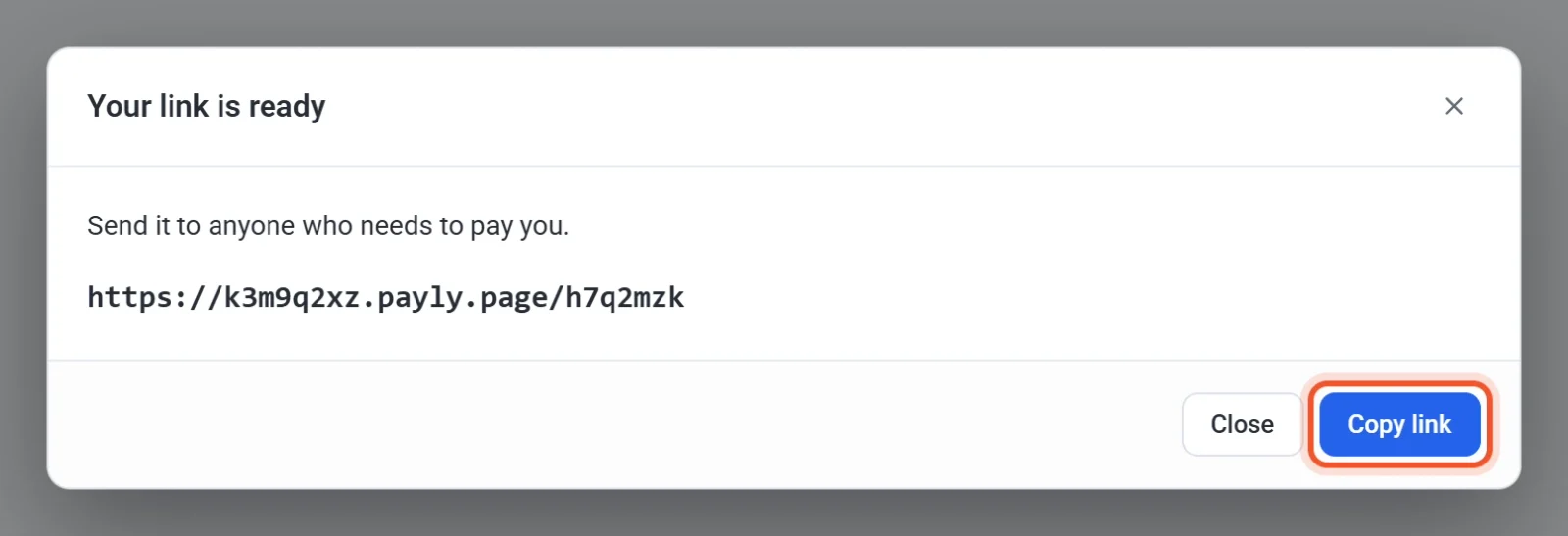
Your links are kept together on one screen called Payment links. To make another, click New link there. A new link goes live as soon as you create it, and there is nothing to publish.
Connect PayPal or Stripe
A link can take payments only when PayPal, Stripe or both are connected. Your payment links have their own connections, so connect them even if your store is already connected. Do it before you share a link.
- Click Settings in the left menu, then click the Payments tab. The Go to Payments link on the Payment links screen takes you there too.
- Click Connect PayPal, Connect Stripe or both, and follow Connect PayPal and Connect Stripe.
Until one is connected, a link's page says "This payment link can’t take payments yet." Payers see Pay with PayPal if PayPal is connected and Pay with Credit Card if Stripe is. If you connect another account after making a link, click the link's name on the Payment links screen, then click Save, and its page shows the new button.
Tip: To try a link without real money, turn on Test mode on the Payments tab. See Take test payments with test mode.
What payers see
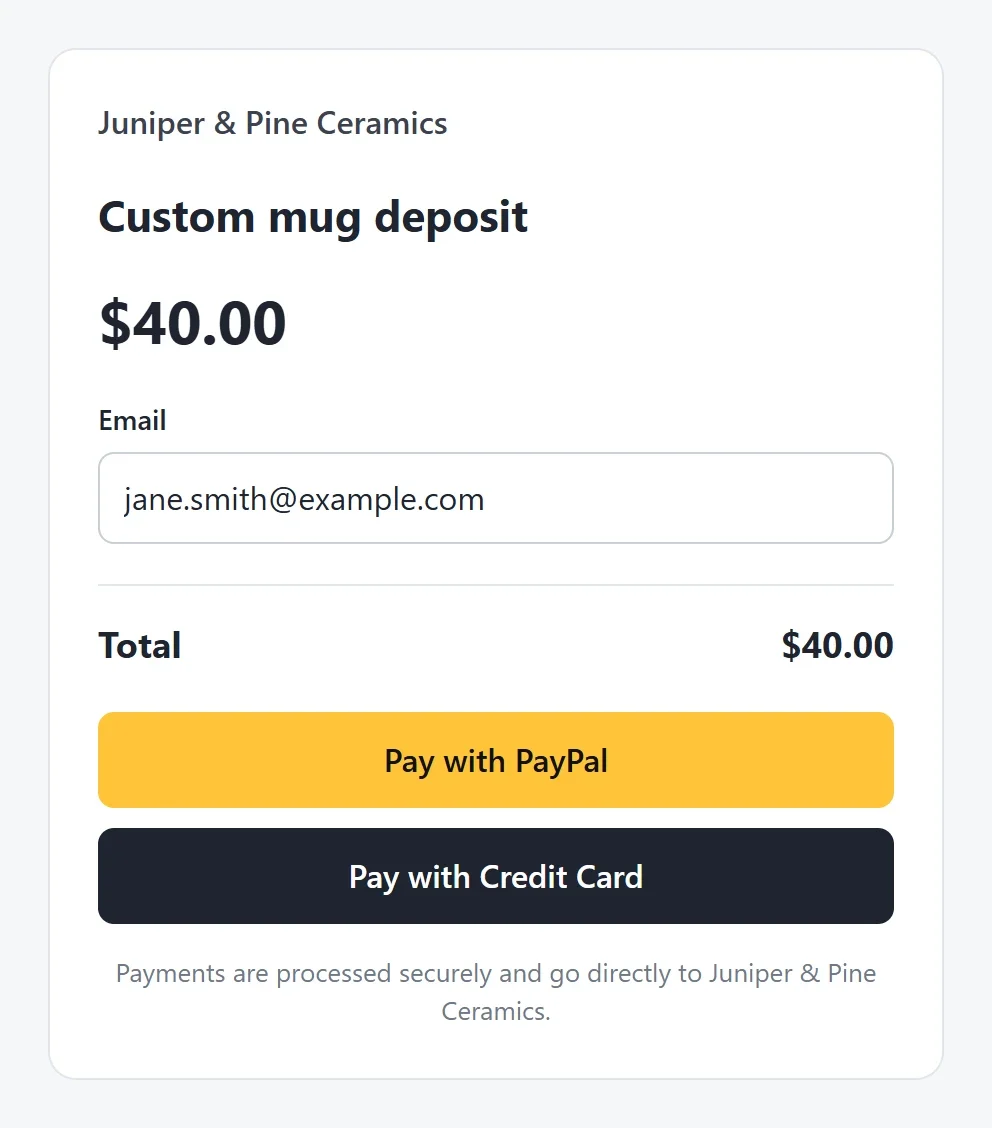
A payer opens your link and sees your business name, what the payment is for, the amount and the total. They type an email address for the receipt, click a pay button, and finish on PayPal's or Stripe's own page. A receipt page then says "Thank you for your payment", and they get a confirmation email.
After someone pays
- The payment appears under Payments in the left menu. Open it to see the payer's email address and, if you asked for them, their phone number and address. The payer is also added to Customers.
- The link's row adds the payment to Times paid and Total.
- You get a New order email, which you can turn off in Settings > Emails.
- The money arrives in your own PayPal or Stripe account. See When and how you get paid.
To change or switch off a link, see Share your payment link. To change the business name payers see, edit Site name in Settings > General and click Save.