
Share your payment link
Copy your payment link's address, send it by email, text or chat, and switch the link off, change it or delete it when you are done.
A payment link is a web address, so you can send it anywhere a person can click or tap. Payers do not need a Payly account or a sign-in. They open the link on a phone, tablet or computer, and pay.
Copy your link's address
- Find the card labeled Payment links on the Your sites screen. It carries your business name. Click Dashboard on it, and the Payment links screen opens.
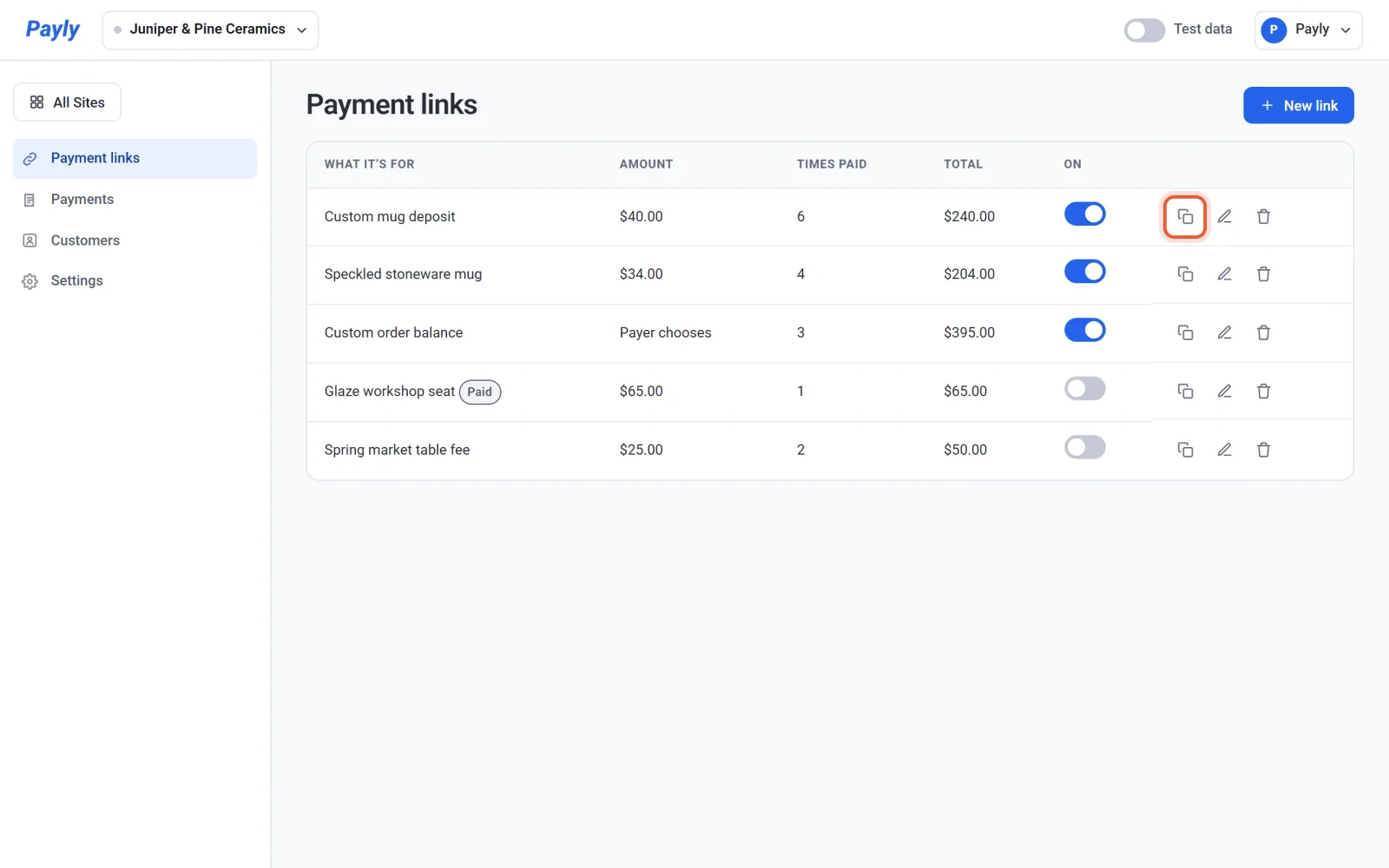
- Find your link in the list and click the Copy link icon at the end of its row. Payly says "Link copied."
- Paste the address where you want to share it.
Right after you make a link, you can also click Copy link in the Your link is ready window.
The address ends with a short code made of letters and numbers, such as h7q2mzk. Each link has its own code. If you connect your own domain, the address uses it. See Connect a custom domain.
Where to share it
- Email or text message. Paste the address into a message to the person who owes you, with a line saying what it is for.
- Chat and social media. Paste it into a direct message, a post or your profile.
- An invoice or a quote. Add the address next to the amount, so the payer can click it.
- Your Payly store. In the editor, add a button, set its Link to Custom link and paste the address. Publish your store to show the button. See Edit text, headings and buttons.
- Another website. Use the address for any link or button on a site you built somewhere else.
Important: Anyone who has the address can open the link and pay it. Send a link that can be paid once only to the person who should pay it.
What payers see on a phone
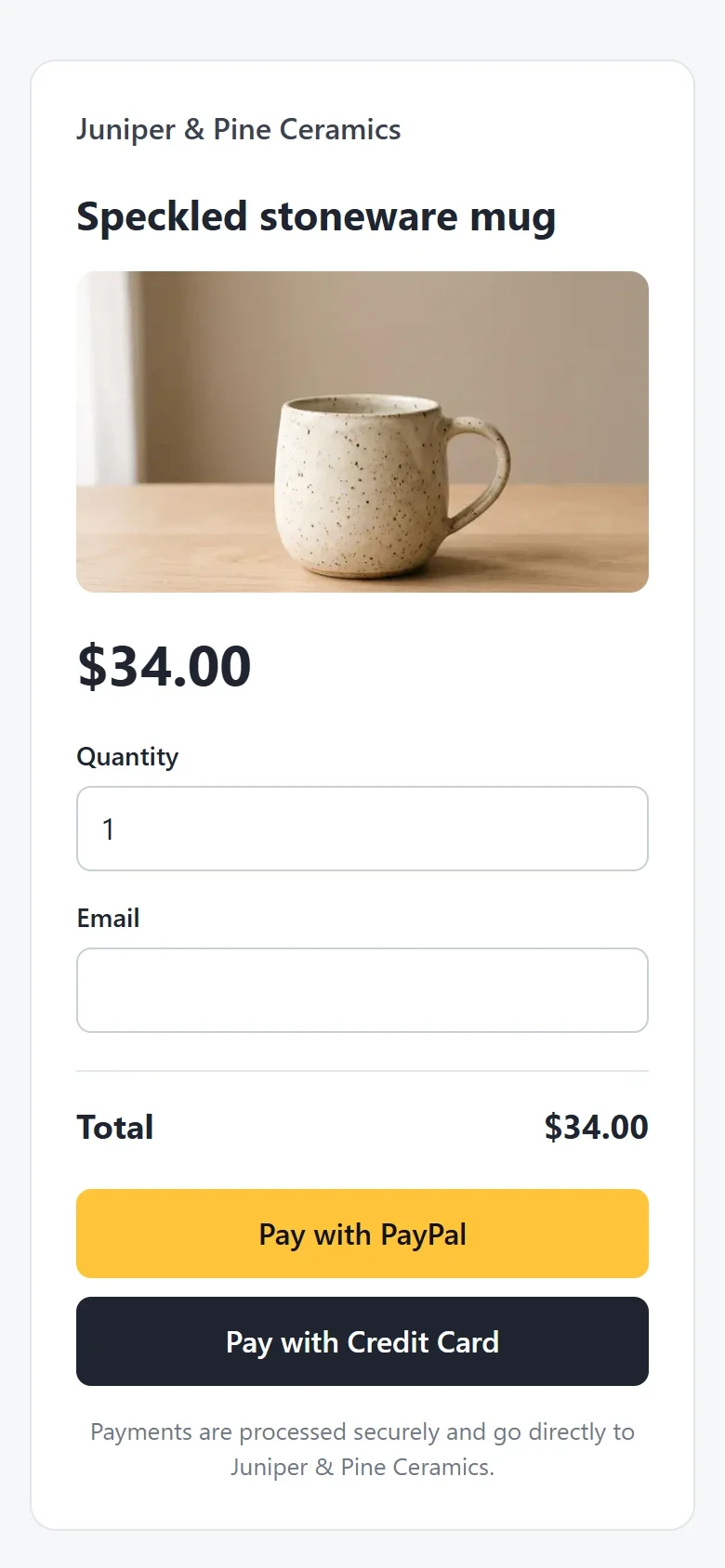
The page is made to work on small screens as well as large ones. The payer sees your business name, what the payment is for, your photo if you added one, and the amount. They type their email address, then pay with PayPal or a card on PayPal's or Stripe's own page.
Switch a link off
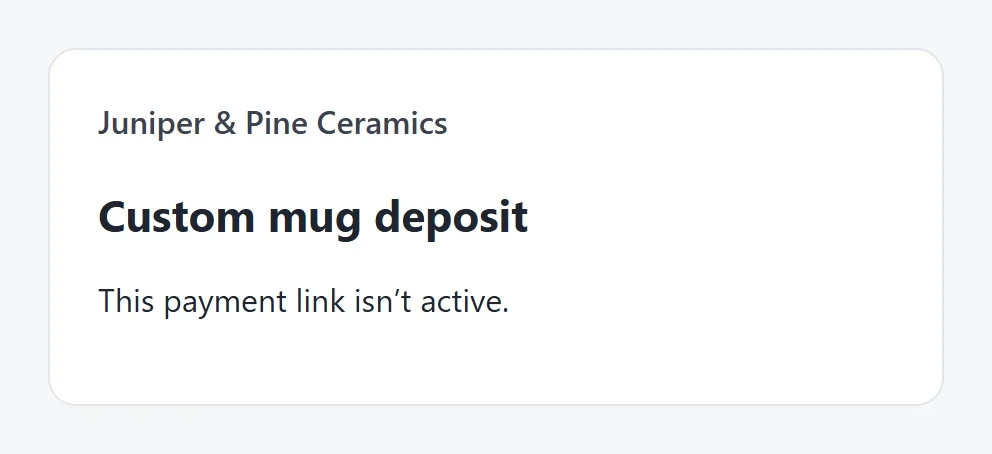
To stop taking payments without deleting the link, click its switch in the On column. Payly says "Link switched off." Anyone who opens the address then sees "This payment link isn’t active." Click the switch again to turn the link back on.
A link that can be paid once switches itself off after it is paid, and you cannot switch it on again. Its row shows a Paid label. To take another payment, make a new link.
Change a link
Click a link's name, or the Edit icon at the end of its row. In the Edit payment link window, change anything you could set when you made the link, then click Save. The page changes right away, and the address stays the same.
Delete a link
- Click the Delete icon, the trash can at the end of the link's row.
- In the Delete this payment link? window, click Delete.
The link stops working for anyone who has its address. Its past payments are kept, and you can still see them under Payments. To refund one, see Refund a payment.